
Mobile tips and tricks can help you get more from your smartphone without installing unnecessary apps or changing complicated settings. Whether you use an Android phone or an iPhone in India, a few simple adjustments can improve battery life, free up storage, strengthen privacy, reduce distractions, and make everyday tasks faster.
Modern smartphones include many useful features that people often overlook. Settings for battery optimization, app permissions, backups, notifications, security, accessibility, and data usage can significantly improve the experience when configured properly.
This guide covers practical mobile tips and trick ideas that are useful for students, professionals, parents, travellers, and everyday smartphone users.
1. Keep Your Phone Software Updated
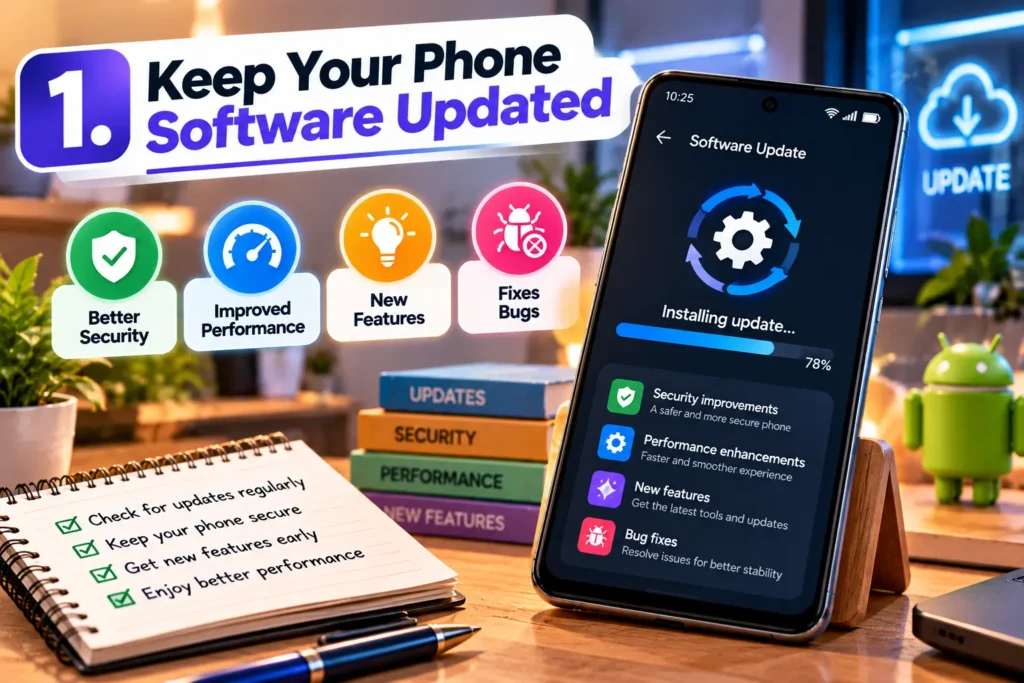
Keeping your smartphone updated is one of the easiest ways to improve security, stability, and performance. Software updates can fix known bugs, patch security weaknesses, and introduce improvements to existing features.
On Android, the exact menu varies by manufacturer, but software updates are usually available under Settings > System or Settings > Software Update. On an iPhone, you can check Settings > General > Software Update.
Why Are Mobile Updates Important?
Updates are particularly important because smartphones contain personal information such as photos, messages, saved accounts, payment apps, contacts, and documents.
However, before installing a major operating-system update, it is sensible to:
- Back up important files and photos.
- Connect to a reliable Wi-Fi network.
- Make sure the battery has sufficient charge.
- Check that essential apps support the new software version.
Avoid repeatedly postponing security updates simply because your phone appears to work normally.
2. Improve Mobile Battery Life
You can improve smartphone battery life by controlling screen brightness, background activity, connectivity, and power-hungry applications. You usually do not need to disable every useful feature.
The display is an important part of smartphone power consumption, so start by using automatic brightness or lowering brightness when maximum visibility is unnecessary.
Practical Battery-Saving Tips
Turn on Battery Saver or Low Power Mode when you need your phone to last longer. You can also review the battery section in Settings to identify applications consuming unusually large amounts of power.
Other useful steps include:
- Reduce unnecessary screen-on time.
- Use a shorter screen timeout.
- Limit background activity for apps you rarely use.
- Turn off hotspot when you have finished using it.
- Disable unnecessary location access.
- Avoid leaving power-intensive games running in the background.
You do not need to close every application constantly. Modern mobile operating systems manage background applications automatically, and excessive manual closing is not always beneficial.
3. Free Up Smartphone Storage
A phone with very little available storage can become difficult to manage. Removing unnecessary downloads, duplicate media, old videos, and unused applications is one of the simplest mobile tips and tricks for keeping storage under control.
Start by checking the storage dashboard in your phone settings. It can show which categories are consuming the most space.
What Should You Delete First?
Do not randomly delete files. Start with content you can easily identify and recover.
Check:
- Large downloaded videos
- Duplicate or unwanted photos
- Offline movies and music
- Old documents
- Unused applications
- Messaging-app media
- Unnecessary screenshots
- Large files in the Downloads folder
Before deleting important photos or documents, confirm that you have a reliable backup.
4. Control App Permissions
App permissions determine what an application can access, including your camera, microphone, contacts, photos, notifications, and location.
A useful rule is simple: an app should have access only to the information it genuinely needs for its main function.
For example, a navigation application may reasonably require location access. A simple calculator normally has little reason to request your precise location.
Review Sensitive Permissions
Periodically check permissions for:
- Location
- Camera
- Microphone
- Contacts
- Photos and files
- Nearby devices
Where your phone supports it, options such as Allow only while using the app can provide a better balance between functionality and privacy.
5. Use a Strong Screen Lock
A strong screen lock protects your information if your phone is lost, borrowed without permission, or stolen.
Use a secure PIN, password, or supported biometric authentication such as fingerprint or facial recognition. Avoid obvious PINs based on simple sequences or easily guessed personal information.
Enable Lost-Device Features
Android and iPhone devices offer tools that can help locate or secure a missing phone when properly configured.
Make sure your device’s lost-device feature is enabled before you actually need it. Your account details and recovery information should also be kept up to date.
This small setup can be extremely useful during an emergency.
6. Make Mobile Internet Data Last Longer
Mobile data management is particularly useful when you rely on a limited daily or monthly data allowance.
Your smartphone can usually show how much mobile data individual apps consume. Check this section occasionally and investigate apps using more data than expected.
Reduce Unnecessary Data Consumption
Useful strategies include:
- Download large updates over trusted Wi-Fi.
- Disable unnecessary background mobile data.
- Lower video-streaming quality when using cellular data.
- Download music or maps over Wi-Fi before travelling.
- Turn off automatic media downloads where appropriate.
Be careful with public Wi-Fi. Avoid assuming an unfamiliar network is trustworthy simply because it is free.
7. Organize Notifications
Too many notifications make important alerts harder to notice. Instead of putting your entire phone on silent, disable notifications from apps that do not deserve immediate attention.
Keep important alerts enabled for communication, security, payments, school, work, travel, or other services you actively use.
Use Focus and Do Not Disturb Modes
Focus or Do Not Disturb features can reduce interruptions during study, meetings, sleep, or focused work.
You can often configure exceptions for selected contacts or apps. This gives you more control than simply disabling every notification.
A cleaner notification system can also make your phone feel less cluttered.
8. Use Keyboard Shortcuts and Voice Typing
If you type frequently on your smartphone, keyboard features can save considerable time.
Most modern keyboards offer predictive text, clipboard tools, voice typing, multilingual input, and text replacement features.
Create Shortcuts for Repeated Text
You can create text shortcuts for information you type regularly, such as a business phrase or commonly used response.
For example, instead of repeatedly typing a long standard sentence, a short custom abbreviation can expand into the complete phrase where your keyboard supports text replacement.
Avoid creating shortcuts for passwords, banking credentials, or other sensitive information.
9. Use Split Screen and Multitasking
Many Android smartphones support split-screen multitasking, while iPhones provide various app-switching and productivity features depending on the device and iOS version.
Split screen can be useful when comparing information, watching a tutorial while taking notes, or copying details between compatible apps.
When Is Multitasking Useful?
It works particularly well for tasks such as:
- Comparing products
- Taking notes from a webpage
- Checking a calendar while messaging
- Copying addresses
- Following instructions
Not every app supports split-screen mode, and availability varies between phone brands and operating-system versions.
10. Back Up Important Mobile Data
A smartphone can be replaced; important memories and documents may not be.
Regular backups are among the most valuable mobile tips and tricks because they protect you against accidental deletion, device damage, loss, and some software problems.
What Should You Back Up?
Prioritize:
- Photos and videos
- Contacts
- Important documents
- Notes
- Device settings where supported
- Essential app information where supported
Cloud backup is convenient, while an additional copy of especially important files on a trusted computer or storage device can provide extra protection.
Always check that backups are actually completing successfully.
11. Find Useful Features With Settings Search
One of the fastest ways to discover hidden smartphone features is to use the search bar inside Settings.
Instead of manually exploring dozens of menus, search directly for terms such as battery, permissions, hotspot, screen time, backup, NFC, accessibility, or notifications.
This is particularly useful because Android menu names vary across Samsung, Xiaomi, OnePlus, Motorola, vivo, OPPO, realme, Google Pixel, and other devices.
12. Customize Quick Settings
Quick Settings on Android and Control Center on iPhone give you faster access to frequently used controls.
Depending on your device, you may be able to add, remove, or rearrange shortcuts for features such as flashlight, Wi-Fi, Bluetooth, screen recording, hotspot, airplane mode, brightness, and other controls.
Place your most-used controls where they are easiest to reach.
This is a small customization, but it can save time every day.
13. Use Screen Recording When Needed
Screen recording is useful for tutorials, demonstrating an app problem, explaining settings, or saving a visual process for personal reference.
Many modern smartphones include a built-in screen recorder, although available controls vary by device.
Protect Private Information Before Recording
Before starting a screen recording:
- Close private conversations.
- Hide sensitive notifications.
- Check what is visible on screen.
- Avoid exposing passwords or payment information.
Always respect other people’s privacy before sharing a recording containing their messages, images, or personal information.
14. Scan Documents With Your Phone
Your smartphone can often replace a basic document scanner for everyday tasks.
Built-in camera, notes, file-management, or supported document apps can capture a paper document, straighten its perspective, and save it digitally.
This can be useful for students, office work, receipts, forms, and personal records.
For official documents, check the receiving organization’s requirements before assuming a mobile scan will be accepted.
15. Make Your Smartphone Easier to Read
Accessibility settings are useful for everyone, not only users with disabilities.
You can often adjust text size, display zoom, contrast, captions, magnification, touch controls, and other interface options.
If you regularly struggle to read small text, increasing font size is usually better than repeatedly zooming individual pages.
Some devices also provide features such as live captions or spoken content, though availability depends on the operating system, language, region, and device.
16. Protect Yourself From Suspicious Links and Apps
Never install an application simply because a message or website tells you that it is required.
Fake apps, phishing pages, misleading downloads, and suspicious links can be used to steal login information or other personal data.
For most users, downloading apps from the official app store and carefully checking the developer and requested permissions is safer than installing apps from unknown sources.
Be especially cautious with messages creating urgency around bank accounts, rewards, parcels, passwords, or account verification.
17. Avoid Overheating Your Smartphone
Phones naturally become warm during gaming, charging, navigation, video recording, or heavy processing. Persistent or excessive heat, however, can affect performance and battery longevity.
If your device becomes unusually hot, stop demanding tasks and allow it to cool naturally.
Common Causes of Excessive Heat
Possible causes include prolonged gaming, direct sunlight, intensive camera use, heavy background activity, charging while running demanding applications, or environmental heat.
Do not try to cool a hot phone using a refrigerator or freezer. Rapid temperature changes and condensation can create additional problems.
18. Restart Your Phone When Something Seems Wrong
Restarting is a simple troubleshooting step for temporary software problems.
If an app is behaving strangely, connectivity is unstable, or the interface has become unresponsive, restarting the device may clear a temporary issue.
It will not solve every problem. Persistent crashes, unexplained overheating, rapidly declining battery performance, or hardware problems may require deeper troubleshooting or professional support.
19. Learn Emergency and Safety Features
Modern smartphones may include emergency calling, emergency contacts, medical information, location-sharing, and SOS features.
The exact functions and activation methods vary by device, region, and operating-system version. Check your own phone’s settings rather than assuming every device works the same way.
Configure emergency information carefully and learn how the feature operates before an actual emergency occurs.
20. Use Automation Features for Repetitive Tasks
Some smartphones can automate routine actions.
Depending on your operating system and device, automation tools may help you trigger actions based on time, location, connected accessories, or other conditions.
For example, you may be able to create routines for bedtime, work, driving, or battery saving.
Keep automations simple at first. Complicated routines can become confusing if you forget which automatic actions are enabled.
Best Mobile Tips and Tricks for Everyday Use
You do not need to change dozens of settings at once. The most useful approach is to focus on improvements that solve a real problem.
| Your Problem | Useful Action |
|---|---|
| Battery drains quickly | Review battery usage and background activity |
| Storage is nearly full | Remove large and unnecessary files |
| Too many alerts | Customize notifications and Focus modes |
| Privacy concerns | Review app permissions |
| Phone gets unusually hot | Stop intensive tasks and let it cool |
| Mobile data finishes quickly | Limit background data and streaming quality |
| Important files could be lost | Configure reliable backups |
| Phone is distracting | Use Focus or Do Not Disturb |
Common Mobile Mistakes to Avoid
Many smartphone problems come from unnecessary changes rather than a lack of optimization.
Avoid installing unknown “cleaner” or “booster” applications simply because they promise dramatic performance improvements. Your phone already includes built-in storage, battery, and app-management tools.
You should also avoid giving every application unrestricted permissions, ignoring backups, using easily guessed screen locks, clicking suspicious links, and deleting unfamiliar system files.
Another common mistake is following device-specific advice without checking whether it applies to your model. Android interfaces can differ considerably between manufacturers, while iPhone features can vary by iOS version and hardware.
Frequently Asked Questions
What are the most useful mobile tips and tricks?
The most useful tips include keeping software updated, reviewing app permissions, enabling backups, managing storage, using a secure screen lock, controlling unnecessary notifications, and checking battery usage. These changes improve everyday usability without requiring advanced technical knowledge or third-party optimization apps.
How can I make my mobile phone faster?
Start by freeing unnecessary storage, updating the operating system and apps, restarting the device, and removing applications you no longer use. If one app is causing problems, troubleshoot that app rather than changing the entire phone. Very old hardware may still feel slow because software demands increase over time.
How can I improve my phone’s battery life?
Lower unnecessary screen brightness, use Battery Saver when appropriate, review apps with high battery consumption, reduce unnecessary background activity, and avoid excessive heat. Battery capacity naturally decreases as batteries age, so settings changes cannot completely restore an old or physically degraded battery.
Are these mobile tips useful for both Android and iPhone?
Yes. Core practices such as backups, software updates, strong device security, permission management, storage cleanup, and notification control apply to both platforms. However, menu names and individual features differ between Android brands, Android versions, iPhone models, and iOS versions.
How can I keep my smartphone secure?
Use a strong screen lock, install software updates, download apps from trusted sources, review permissions, enable account security features, and be cautious with unexpected links or requests for personal information. You should also configure device-location and recovery features before your phone is lost.
Conclusion
The best mobile tips and tricks are not complicated hacks. They are practical settings and habits that make your smartphone safer, easier to manage, and more useful.
Start with the essentials: update your phone, review permissions, secure the lock screen, enable reliable backups, organize notifications, check battery usage, and remove unnecessary files. Then explore features such as quick settings, accessibility options, document scanning, screen recording, multitasking, and automation.
Instead of changing everything at once, choose three tips from this guide that solve problems you actually experience. Small improvements to security, battery management, storage, and productivity can make a noticeable difference in everyday smartphone use.