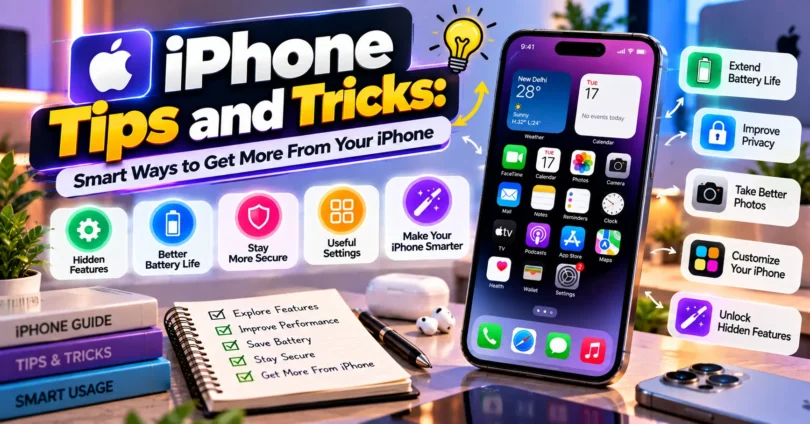

iPhone Tips and Tricks can help you use your device faster, protect your personal information, improve battery life, take better photos, and discover features you may have overlooked. Many useful iPhone functions are built directly into iOS, but they are easy to miss if you only use the basic settings.
Whether you recently bought an iPhone in India or have been using one for years, learning a few practical shortcuts can make a noticeable difference. You do not need advanced technical knowledge or extra apps for most of these features.
This guide covers useful iPhone settings, privacy controls, camera tricks, battery-saving options, typing shortcuts, productivity features, and other practical ways to get more from your phone.
What Are the Best iPhone Tips and Tricks?
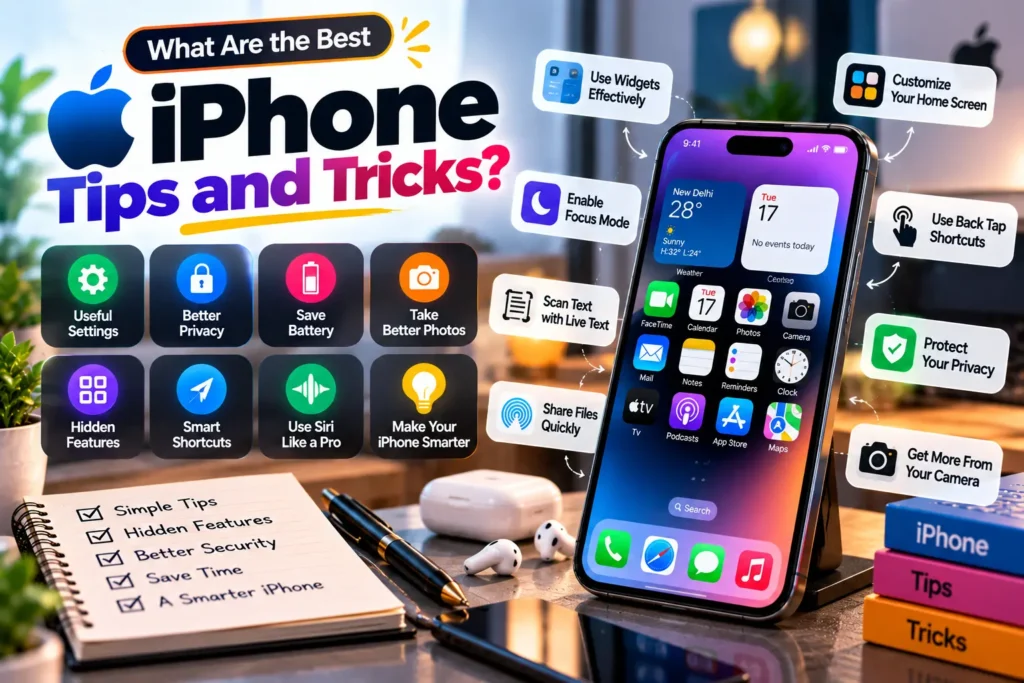
The best iPhone tips and tricks are the ones that make everyday tasks quicker, safer, or more convenient. Useful examples include customizing Control Centre, using Back Tap, scanning documents, managing app permissions, optimizing battery charging, and finding text inside photos.
The exact features available can depend on your iPhone model and iOS version. If you cannot find a particular option, check for an iOS update and confirm whether your device supports the feature.
Here are some of the most useful tricks to try.
1. Customize Control Centre for Faster Access
Control Centre gives you quick access to commonly used controls without having to search through the Settings app.
Depending on your iOS version, you can customize Control Centre and place the controls you use most often within easy reach. These may include features such as Calculator, Screen Recording, Low Power Mode, Dark Mode, Notes, accessibility controls, and connectivity options.
A well-organized Control Centre can save time throughout the day, especially if you frequently change settings.
Keep Only Useful Controls
Avoid filling Control Centre with options you rarely use. Prioritize the tools you access every day so that important controls remain easy to find.
2. Use Back Tap for Quick Actions
Back Tap is an accessibility feature that can turn a double or triple tap on the back of a compatible iPhone into a shortcut.
Go to:
Settings > Accessibility > Touch > Back Tap
You can assign supported actions such as taking a screenshot, opening Control Centre, activating an accessibility feature, or running a Shortcut.
For example, if you regularly take screenshots for work or study, assigning Screenshot to Double Tap can make the process much quicker.
Back Tap may not work equally well with every case or tapping style, so test it before relying on it.
3. Use Spotlight to Find Almost Anything
Instead of manually searching through folders and apps, use Spotlight to locate information quickly.
Swipe down from the middle of the Home Screen and enter what you need. Spotlight can help locate apps, contacts, messages, files, settings, and other searchable content.
It can also handle simple calculations and conversions, making it useful when you need a quick answer without opening a separate app.
For users with dozens of installed apps, Spotlight is often faster than browsing multiple Home Screen pages.
4. Create Text Replacements for Faster Typing
Text Replacement lets you turn a short abbreviation into a longer phrase automatically.
Go to:
Settings > General > Keyboard > Text Replacement
You could create shortcuts for information you type frequently, such as:
- Email addresses
- Business names
- Common replies
- Website names
- Frequently used phrases
For example, you could set a short abbreviation to expand into your complete business email address.
Avoid creating shortcuts that contain passwords, banking PINs, or other sensitive information.
5. Turn the Keyboard Into a Trackpad
Editing text on a small display can be frustrating when you need to position the cursor precisely.
On supported iPhones, touch and hold the Space bar until the keyboard changes into a trackpad-like control. Then slide your finger to move the cursor through your text.
This is particularly useful when editing emails, documents, social media captions, or long messages.
It is one of the simplest iPhone tricks to learn, yet it can significantly improve typing and editing.
6. Scan Documents Using Your iPhone
You usually do not need a separate scanner app for basic document scanning.
Apple’s built-in apps provide document scanning features. For example, you can scan documents through Notes and supported file workflows, then save or share the result digitally.
A typical Notes workflow is:
- Open Notes.
- Create or open a note.
- Choose the attachment or camera option.
- Select Scan Documents.
- Position the document inside the camera view.
- Adjust the scan if necessary and save it.
This can be useful in India for scanning receipts, school notes, forms, invoices, and other paperwork.
Always check that important text is readable before sending or deleting the original document.
7. Copy Text Directly From Photos
Live Text allows supported iPhones to recognize useful text inside photos and camera views.
For example, if you photograph a business card, signboard, printed note, or receipt, you may be able to select the visible text and copy it into another app.
Depending on the content and software support, additional actions may also appear, such as calling a detected phone number or opening a recognized web address.
Recognition accuracy can vary with handwriting, image quality, language, lighting, and text style, so verify important information after copying it.
8. Improve iPhone Battery Life With Low Power Mode
Low Power Mode reduces certain background activities to help your battery last longer when charging is not immediately available.
You can enable it from:
Settings > Battery > Low Power Mode
This can be particularly helpful during travel, long college or office days, or power interruptions.
Low Power Mode is useful, but it should not be confused with repairing battery degradation. If an older battery has significantly reduced capacity, changing software settings cannot restore its original physical capacity.
9. Check Which Apps Are Using Your Battery
If your iPhone seems to be losing power unusually quickly, check battery usage before randomly disabling features.
Open:
Settings > Battery
The Battery section can show which apps have been consuming power over the displayed period. It may also provide useful information about activity.
An app with high battery use is not automatically problematic. For example, navigation, gaming, video streaming, and camera apps naturally consume more energy when heavily used.
Look at your usage pattern before deciding whether something is unusual.
10. Use Optimized Battery Charging
Supported iPhones include charging features designed to help reduce battery aging.
Look under the battery and charging settings available on your device. Depending on the iPhone model and iOS version, Apple may provide options such as Optimized Battery Charging or charge-limit controls.
Optimized Battery Charging learns from charging habits and can delay charging beyond a certain point in some situations so the device spends less time fully charged.
Available charging controls vary between iPhone models, so use the options shown on your particular device.
11. Review App Privacy Permissions
One of the most important iPhone tips and tricks is not really a trick at all: regularly review which apps can access sensitive device features.
Open:
Settings > Privacy & Security
Review access to areas such as:
- Location Services
- Contacts
- Photos
- Camera
- Microphone
- Bluetooth
- Local Network
An app should generally have only the permissions required for the features you actually use.
For example, a weather app may have a reasonable need for location access, while an unrelated utility requesting continuous location access deserves closer review.
12. Control Location Access More Carefully
iOS gives you granular control over how apps access your location.
Depending on the app and available options, you may be able to choose settings such as Never, Ask Next Time or When I Share, While Using the App, or Always.
Some apps also allow you to disable Precise Location when an approximate location is sufficient.
Do not disable location permissions blindly. Navigation, delivery, ride-booking, emergency, and location-based apps may need location access to work properly.
The goal is appropriate access, not zero access.
13. Set Up Emergency SOS and Medical ID
Safety-related settings are worth configuring before you actually need them.
Your iPhone includes Emergency SOS features, while the Health app can store Medical ID information you choose to provide.
Review your emergency settings and make sure emergency contacts and relevant details are current.
Because emergency features can vary by model, region, network availability, and software version, check the options shown on your own device rather than assuming every advertised feature is available everywhere in India.
14. Use Focus Modes to Reduce Distractions
Focus helps control which notifications and people can reach you during particular activities.
You can create different Focus modes for situations such as:
- Work
- Study
- Sleep
- Personal time
- Driving
For example, a Study Focus could allow calls from family while limiting social media notifications.
A common mistake is making a Focus mode too restrictive and accidentally silencing important communication. Review the allowed people and apps carefully.
15. Schedule a Focus Mode Automatically
You do not always need to activate Focus manually.
Focus settings can support schedules or other automatic activation conditions, depending on the configuration and iOS version.
A student, for example, could have Study Focus activate during regular study hours. A professional could configure Work Focus around a normal working schedule.
Automation makes Focus more useful because it reduces the need to remember to switch modes every day.
16. Take Better Photos With Grid and Level Tools
You do not need to be a professional photographer to improve iPhone photos.
Open your camera settings and look for composition tools such as Grid and Level. The grid can make it easier to position subjects, while the level can help keep certain shots properly aligned.
Also pay attention to basic photography fundamentals:
- Clean the camera lens.
- Use natural light when possible.
- Avoid unnecessary digital zoom.
- Tap the main subject to control focus.
- Adjust exposure when a scene looks too bright or dark.
- Hold the phone steady in low light.
Good technique often matters more than using complicated camera settings.
17. Use Camera Shortcuts for Faster Shooting
Interesting moments can disappear before you unlock your iPhone, find the Camera app, and prepare the shot.
Use the camera shortcut available from the Lock Screen or other supported quick-access methods on your device.
Learning the camera controls on your particular iPhone can also help you switch between photo, video, portrait, and other available modes faster.
Remember that camera capabilities differ considerably between iPhone models.
18. Organize Your Home Screen With Widgets
Widgets let you see useful information without opening an app every time.
Depending on the apps you use, your Home Screen can display information such as calendar events, weather, reminders, battery information, or activity.
However, more widgets do not necessarily mean a better Home Screen. Too many can make your setup feel cluttered.
Choose widgets that save you time and remove those you rarely use.
19. Use the App Library to Reduce Home Screen Clutter
The App Library automatically organizes installed apps and gives you another way to access them without keeping every app visible across multiple Home Screen pages.
This allows you to maintain a cleaner Home Screen while keeping less frequently used apps installed.
You can also use search to locate an app quickly rather than remembering which folder contains it.
A simple setup with essential apps and widgets on the Home Screen can make everyday navigation easier.
20. Set Up Find My Before You Need It
Find My is an important feature for locating supported Apple devices and items associated with your account.
Open the Find My settings on your iPhone and review the available device-location options before your phone is ever misplaced.
Also protect your Apple Account with a strong password and appropriate security settings.
Find My capabilities depend on device settings, connectivity, account configuration, and supported hardware. No tracking feature can guarantee recovery of a lost or stolen device, so treat it as part of your security setup rather than your only protection.
21. Keep iOS and Apps Updated
Software updates can include security fixes, bug fixes, compatibility improvements, and new features.
Check iOS updates under:
Settings > General > Software Update
You should also keep important apps updated through the App Store.
Before installing a major iOS release, having a current backup is sensible. Users with critical work apps may also want to confirm that those apps support the new version before updating immediately.
Bonus: Use Shortcuts to Automate Repetitive Tasks
Apple’s Shortcuts app can combine actions into reusable workflows.
You might use Shortcuts for tasks such as opening several work apps, creating a note from selected information, launching navigation, or performing supported actions automatically.
Start with simple shortcuts before creating complicated automations. This makes troubleshooting easier and helps you understand exactly what each action does.
Which iPhone Features Should You Use First?
If you do not want to change dozens of settings at once, start with features that provide immediate practical value.
| Feature | Main Benefit | Best For |
|---|---|---|
| Back Tap | Quick actions | Everyday convenience |
| Low Power Mode | Reduces power use | Long days and travel |
| Focus | Controls interruptions | Work and study |
| Live Text | Extracts text from images | Notes and productivity |
| Text Replacement | Faster typing | Frequent messaging |
| Find My | Helps locate devices | Device security |
| Privacy Permissions | Controls app access | Privacy |
| Document Scanner | Digitizes paperwork | Students and professionals |
There is no need to enable every feature. Choose settings based on how you actually use your iPhone.
Common iPhone Mistakes to Avoid
Even experienced users sometimes make simple mistakes that reduce convenience, privacy, or reliability.
Avoid giving every app unnecessary permissions. Review access instead of automatically approving requests.
Do not constantly force-close every app simply because it appears in the app switcher. iOS manages applications and system resources automatically, and routine force-closing is generally unnecessary. Force-close an app when it becomes unresponsive or when troubleshooting requires it.
Avoid ignoring storage warnings. Photos, videos, downloads, messages, and large apps can gradually consume available space.
Do not postpone backups indefinitely. Important photos, contacts, files, and other information should have an appropriate backup strategy.
Finally, avoid changing unfamiliar settings just because an online video claims they will dramatically improve your iPhone. Understand what a setting does before changing it.
How to Make Your iPhone More Secure
A secure iPhone starts with basic account and device protections rather than complicated third-party tools.
Use a strong device passcode, enable Face ID or Touch ID where supported, protect your Apple Account, review connected devices, and keep iOS updated.
Be cautious with unexpected messages asking you to enter account credentials or payment details. If a message claims there is an urgent problem with an account, open the relevant official app or website independently rather than trusting an unexpected link.
You should also review privacy permissions occasionally, especially after installing new apps.
How to Make an iPhone Easier to Use Every Day
The best setup is one that matches your routine.
Students may benefit most from Focus, document scanning, Notes, Live Text, and battery-saving features. Professionals may prefer Calendar widgets, Shortcuts, text replacements, scanning, and organized notifications.
For everyday users, a cleaner Home Screen, customized Control Centre, good privacy settings, and Find My configuration can provide significant benefits without making the device complicated.
Instead of copying someone else’s entire setup, identify tasks you repeat every day and configure your iPhone to reduce the number of steps required.
Frequently Asked Questions
What are the most useful iPhone tips and tricks?
Some of the most useful iPhone tips and tricks include using Back Tap, customizing Control Centre, creating text replacements, scanning documents, using Live Text, setting Focus modes, checking battery usage, reviewing privacy permissions, and configuring Find My. The most valuable features depend on your iPhone model, iOS version, and daily routine.
How can I make my iPhone battery last longer?
Use Low Power Mode when necessary, reduce unnecessary background activity, manage screen brightness, check which apps consume the most battery, and use the charging optimization options available on your iPhone. Battery life also depends on battery age, network conditions, temperature, apps, screen usage, and the specific iPhone model.
Are hidden iPhone tricks safe to use?
Built-in iOS features are generally designed to work safely when configured correctly, but changing a setting without understanding it can affect notifications, privacy, connectivity, or app functionality. Stick to legitimate iOS options, understand what each setting changes, and be cautious with online “secret code” or configuration-profile claims from unknown sources.
Which iPhone settings should I change for better privacy?
Start by reviewing Settings > Privacy & Security. Check which apps can access your location, microphone, camera, contacts, photos, Bluetooth, and local network. Remove permissions that an app does not reasonably need, but keep necessary permissions enabled for apps whose core functions depend on them.
Do iPhone tips work on every iPhone model?
No. Some features require particular hardware or newer versions of iOS. Camera capabilities, charging controls, accessibility options, and other features can differ by model. If you cannot find a feature mentioned in this guide, check your iOS version and Apple’s information for your specific iPhone model.
Conclusion
Learning a few practical iPhone Tips and Tricks can make your device easier, faster, safer, and more useful without requiring extra apps. Start with simple improvements such as customizing Control Centre, reviewing privacy permissions, configuring Focus, checking battery usage, enabling useful typing shortcuts, and setting up Find My.
You do not need to change everything at once. Pick three or four features from this guide that solve problems you regularly face, test them for a few days, and keep the ones that genuinely improve your routine.