
Android Phone Tips can help you make your smartphone faster, safer, more organised, and easier to use. Whether you have a Samsung Galaxy, Google Pixel, OnePlus, Motorola, Xiaomi, Nothing, Vivo, OPPO, or another Android device, a few smart settings can noticeably improve your everyday experience.
Android gives users considerable control over notifications, apps, battery usage, permissions, storage, security, and personalisation. The challenge is that many useful features are hidden inside menus or vary slightly between phone brands.
This guide covers practical Android tips for users in India, including ways to manage battery life, mobile data, storage, privacy, notifications, security, and performance. Menu names can differ depending on your phone manufacturer and Android version, so use the Settings search bar if you cannot find a particular option.
1. Keep Android and Your Apps Updated
Keeping your phone updated is one of the simplest ways to improve security, stability, and compatibility. Android system updates can include security fixes, bug fixes, performance improvements, and new features.
Open Settings and search for System Update, Software Update, or a similar option. The exact location depends on the manufacturer.
You should also update apps through the Google Play Store. Updated apps are generally better prepared to work with newer Android versions and may fix crashes or other problems.
Why Updates Matter
Regular updates can help with:
- Security vulnerabilities
- App compatibility
- Software bugs
- System stability
- New Android features
- Performance and battery-related improvements
Before installing a major system update, keeping a backup of important photos, documents, and other data is a sensible precaution.
2. Remove Apps You No Longer Use
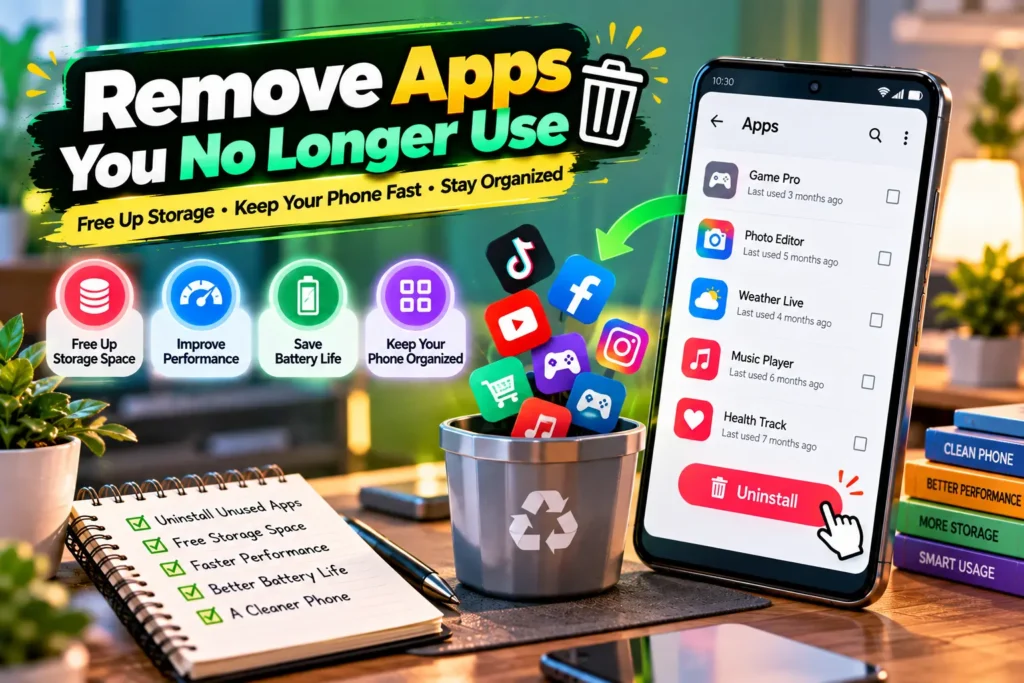
Unused apps can consume storage and may continue using permissions, background processes, notifications, or mobile data.
Review your installed apps occasionally and uninstall applications you no longer need. You can usually do this from Settings > Apps, although the menu may have a different name on some devices.
Do not randomly remove system applications. Some pre-installed apps are connected to important phone functions.
A Simple App Cleanup Routine
Start with apps you have not opened for a long time. Then check large games, duplicate apps, old editing tools, shopping apps you no longer use, and downloaded apps that served only a temporary purpose.
A cleaner app library also makes your phone easier to navigate.
3. Manage Battery Usage Instead of Constantly Charging
Good battery management is about reducing unnecessary power consumption without disabling everything useful.
Open the battery section in Settings and check which apps are using the most power. If an app has unusually high background usage, Android may allow you to optimise or restrict its background activity.
Other useful habits include reducing unnecessary screen brightness, shortening the screen timeout, and disabling features you are not currently using.
Use Battery Saver When Necessary
Battery Saver can be useful when your charge is running low and you still need the phone for calls, navigation, payments, messages, or other essential tasks.
However, power-saving modes may limit background syncing, animations, performance, or notifications. Therefore, keeping the strongest battery-saving mode enabled permanently may not provide the best everyday experience.
4. Use Adaptive or Automatic Screen Brightness
Your display is an important part of overall battery usage. Keeping brightness unnecessarily high can consume more power and may also be uncomfortable indoors.
Adaptive or automatic brightness adjusts the display according to surrounding light conditions. You can usually enable it from the display settings.
If automatic brightness does not suit you, manually setting a comfortable level is also reasonable.
For additional comfort, Android devices may offer Dark Theme, Night Light, Eye Comfort, or similar display options.
5. Organise Notifications Properly
Too many notifications make important alerts harder to notice. Android lets you control notifications at the app level and, on many devices, by notification category.
Go to Settings > Notifications or open an individual app’s notification settings. Disable alerts that do not provide real value while keeping important notifications enabled.
For example, you may want alerts for banking activity, calls, messages, deliveries, and calendar events while disabling unnecessary promotional notifications.
Use Do Not Disturb
Do Not Disturb can reduce interruptions during classes, meetings, study sessions, or sleep.
Depending on your device, you can allow exceptions for selected contacts, alarms, repeated callers, or important apps. This is more practical than simply turning off all notifications.
6. Protect Your Phone With a Strong Screen Lock
One of the most important Android Phone Tips is also one of the simplest: protect the device with a secure screen lock.
Android phones commonly support PINs, passwords, patterns, fingerprint recognition, and, on supported devices, face unlocking. The available security options and their capabilities vary by model.
Use a PIN or password that is difficult for other people to guess. Avoid obvious combinations based on easily known personal information.
Review Lock-Screen Privacy
Notifications can sometimes display message previews or other information while the phone is locked.
If you prefer greater privacy, check your lock-screen notification settings and hide sensitive notification content where appropriate.
This is particularly useful if your phone is often left on a desk, used at school or work, or shared around family members.
7. Review App Permissions Regularly
Android permissions determine whether apps can access features and information such as your camera, microphone, contacts, location, photos, and nearby devices.
Go to your phone’s privacy or permission settings and review which applications have access to sensitive permissions.
Ask a simple question: Does this app genuinely need this permission to perform the feature I use?
For example, a navigation application may need location access while you are using it. An unrelated utility app may have little reason to access your contacts.
Choose Limited Access When Available
Depending on your Android version and device, you may see choices such as allowing a permission only while using the app or selecting specific photos rather than granting broader access.
Using the narrowest access that still allows the app to work can improve privacy.
8. Free Up Storage Before Your Phone Becomes Full
A nearly full phone can make downloading files, installing apps, recording videos, and managing updates more difficult.
Start by checking Settings > Storage, or search for “Storage” in Settings. Android will show how much space is being used and which categories are taking up room.
Common storage users include:
- Videos and photos
- Downloads
- Large games
- Offline movies and music
- Messaging-app media
- Duplicate or forgotten files
- Apps you rarely use
Back up valuable files before deleting anything important.
9. Manage Mobile Data Carefully
Mobile data management is especially useful for Indian users who depend heavily on cellular internet.
Android can show how much data individual apps use. Some phones also provide data warnings, limits, or Data Saver features.
If an application consumes excessive data in the background, check whether you can restrict its background mobile-data usage.
Download Large Files on Wi-Fi
When practical, use a trusted Wi-Fi network for large system updates, offline maps, high-resolution videos, games, and cloud backups.
You can also review streaming quality inside video and music apps. Lower quality settings can reduce data consumption when you are using a limited mobile plan.
10. Use Find My Device Features
A lost Android phone can contain personal photos, messages, accounts, and documents. Setting up Google’s device-finding features before the phone is lost can make recovery and account protection easier.
Check your device settings for Google’s Find My Device or related device-finding options. Make sure the relevant Google account and security settings are configured correctly.
The exact capabilities can depend on your Android version, device model, settings, connectivity, and supported services.
Prepare Before You Lose the Phone
Do not wait until your device disappears to review recovery settings.
Keep your Google account recovery information current, use a secure screen lock, and ensure important data is backed up. These steps can reduce the impact of losing or damaging a device.
11. Back Up Important Data
A phone can be lost, stolen, damaged, reset, or replaced. A backup helps protect information you cannot easily recreate.
Depending on your settings and apps, Android and Google services can back up certain device data. Google Photos can also be configured separately for photo and video backups.
For especially important documents, consider keeping another secure copy rather than relying entirely on a single device.
Check Your Backup Instead of Assuming It Works
One common mistake is enabling a backup feature once and never checking it again.
Periodically verify that recent information is actually being backed up. Also check whether important folders, photos, or app data are included, because backup coverage varies between services and applications.
12. Use Quick Settings More Efficiently
The Quick Settings panel gives fast access to frequently used controls. Depending on the phone, these can include Wi-Fi, Bluetooth, flashlight, mobile data, battery saver, screen recording, hotspot, Do Not Disturb, auto-rotate, and other functions.
Android phones commonly let you rearrange these controls.
Place the options you use most frequently near the front. This small change can save time because you will not need to search through Settings repeatedly.
13. Learn Useful Android Gestures
Gestures can make navigation faster once you become comfortable with them.
Modern Android devices may support gesture navigation, quick camera shortcuts, double-tap actions, one-handed modes, screenshot gestures, or manufacturer-specific shortcuts.
Do not enable every gesture simply because it exists. Choose shortcuts that solve a real problem for you.
Try One-Handed Features on Large Phones
Large displays are excellent for watching videos and reading, but reaching the top of the screen can be difficult.
Many Android phones include a one-handed mode or accessibility features designed to make controls easier to reach. Search Settings for One-handed mode to see whether your device supports it.
14. Improve Android Performance Without “Cleaner” Tricks
If your Android phone feels slow, start with simple troubleshooting rather than installing random “RAM booster” or cleaner apps.
Restart the device, update Android and your apps, remove unused applications, free up storage, and identify apps that repeatedly freeze or consume excessive resources.
Android already manages memory automatically. Constantly forcing apps closed is not a guaranteed way to make the phone faster and can sometimes be counterproductive because apps may need to reload.
When Should You Restart Your Phone?
There is no universal schedule requiring Android phones to be restarted every day. However, restarting can be a useful troubleshooting step when an app behaves strangely, connectivity becomes unreliable, or the interface stops responding normally.
If problems repeatedly return after restarting, investigate the underlying app, storage, update, or hardware issue.
15. Use Google Play Protect and Install Apps Carefully
App security depends partly on where you install applications and what permissions you give them.
Google Play Protect is designed to check apps for potentially harmful behaviour. You can review its status through the Google Play Store’s security-related settings.
Avoid installing unfamiliar APK files simply because a website promises premium features, free paid apps, or modified versions of popular services. Apps from unknown sources can create additional security and privacy risks.
Check Before Installing an App
Before installing, consider:
- Whether you recognise the developer
- Why the app needs its requested permissions
- Whether the app description matches its actual purpose
- Whether you really need the application
- Whether it is available through a trusted app store
Being selective is often more useful than installing multiple security or cleaner applications.
16. Customise Your Home Screen for Faster Access
Android’s flexibility allows you to organise the home screen around how you actually use your phone.
Keep essential apps such as the browser, camera, phone, messages, maps, or payment apps within easy reach. Less frequently used apps can remain in the app drawer or organised into folders.
Widgets can also provide quick access to information such as weather, calendars, notes, timers, and tasks.
Avoid filling every available space. A simple layout is usually easier to navigate.
17. Use Digital Wellbeing Features
Android’s Digital Wellbeing tools can help you understand and manage how you use your device.
Depending on your phone, you may be able to view screen time, notification activity, app usage, and unlock frequency. Features such as app timers, Focus Mode, and Bedtime Mode can also reduce unwanted interruptions.
These tools are optional. Their purpose is not to define a “correct” amount of phone use but to give you more control over when apps demand your attention.
Useful Android Settings at a Glance
| Setting | Main Purpose | Useful When |
|---|---|---|
| Battery Saver | Reduces some power consumption | Battery is running low |
| Data Saver | Limits some background data | Using limited mobile data |
| Do Not Disturb | Reduces interruptions | Studying, meetings, sleep |
| App Permissions | Controls sensitive access | Improving privacy |
| Storage Manager | Helps identify storage use | Phone storage is filling up |
| Find My Device | Helps with a lost device | Device recovery and protection |
| Digital Wellbeing | Shows and manages app usage | Reducing distractions |
| Dark Theme | Changes supported interfaces | Low-light use or preference |
Common Android Phone Mistakes to Avoid
Some common habits can make Android harder to manage or create unnecessary security and performance problems.
Avoid installing too many unnecessary apps, ignoring security updates, granting every requested permission without checking, downloading apps from untrusted sources, allowing storage to remain almost completely full, and relying on aggressive “booster” apps as a substitute for proper troubleshooting.
Another mistake is changing many advanced settings at once. If something goes wrong later, identifying the cause becomes difficult.
Make one meaningful change at a time and observe whether it improves your experience.
Frequently Asked Questions
What are the most useful Android Phone Tips for beginners?
Start with the basics: keep Android and apps updated, use a secure screen lock, review app permissions, enable backups, organise notifications, and check battery and storage usage. These changes improve security and everyday usability without requiring technical knowledge. You can then explore gestures, widgets, automation, and advanced personalisation as you become more familiar with your phone.
How can I make my Android phone faster?
Update the operating system and apps, restart the phone if it is behaving unusually, uninstall apps you no longer use, and maintain enough free storage for normal operation. Check for individual apps that repeatedly freeze or consume excessive resources. Avoid assuming that RAM cleaner or booster applications will automatically improve Android performance.
How can I make my Android battery last longer?
Start by checking the battery usage page to identify apps consuming significant power. Reduce excessive screen brightness, use Battery Saver when needed, limit unnecessary background activity, and turn off unused features when practical. Battery life also depends on screen size, network conditions, battery age, app behaviour, device settings, and how heavily you use the phone.
Is it safe to install APK files on Android?
Android can support installing applications outside the main app store, but doing so introduces additional risk if the file or source cannot be trusted. Modified or unofficial APKs may contain unwanted or harmful software. For most users, downloading apps from trusted stores and checking the developer, permissions, and app reputation is the safer approach.
How often should I update my Android phone?
Install legitimate security and system updates when they become available for your supported device, particularly important security fixes. Update apps regularly as well. The availability and frequency of Android updates differ by manufacturer, model, region, and support period, so checking your phone’s software-update section periodically is a practical habit.
Conclusion
The best Android Phone Tips are not complicated hacks. They are practical habits that help you keep your smartphone secure, organised, efficient, and comfortable to use.
Start by updating your phone, removing unnecessary apps, reviewing permissions, checking backups, managing notifications, and examining battery and storage usage. Then customise Quick Settings, gestures, the home screen, mobile-data controls, and Digital Wellbeing features according to your routine.
You do not need to change every setting at once. Pick three improvements from this guide, apply them today, and learn where the important controls are on your particular Android device. Small, sensible changes can make everyday smartphone use much easier.