
Smartphone Tricks can help you use your phone faster, protect your personal information, improve battery life, manage storage, take better photos, and simplify everyday tasks. Many useful features are already built into Android phones and iPhones, but users often overlook them.
For smartphone users in India, these tips can be especially useful for managing mobile data, digital payments, app permissions, battery usage, photos, messages, and everyday communication. You do not need advanced technical knowledge or additional apps for most of these tricks.
This guide explains practical smartphone tips you can start using right away. Menu names can vary depending on your phone model, Android version, manufacturer interface, or iOS version, so some options may appear in slightly different locations.
What Are Smartphone Tricks?
Smartphone tricks are useful settings, shortcuts, gestures, and built-in features that make a phone easier, safer, or more efficient to use.
They are not complicated hacks. In most cases, they simply involve learning features that already exist on your smartphone.
Useful tricks can help you:
- Reduce unnecessary battery consumption
- Find settings and apps faster
- Improve privacy and security
- Free up storage space
- Control notifications
- Take better photographs
- Reduce unnecessary mobile data use
- Type and navigate more efficiently
The best tricks are those that solve a real everyday problem without making your phone harder to use.
1. Use Settings Search Instead of Browsing Menus
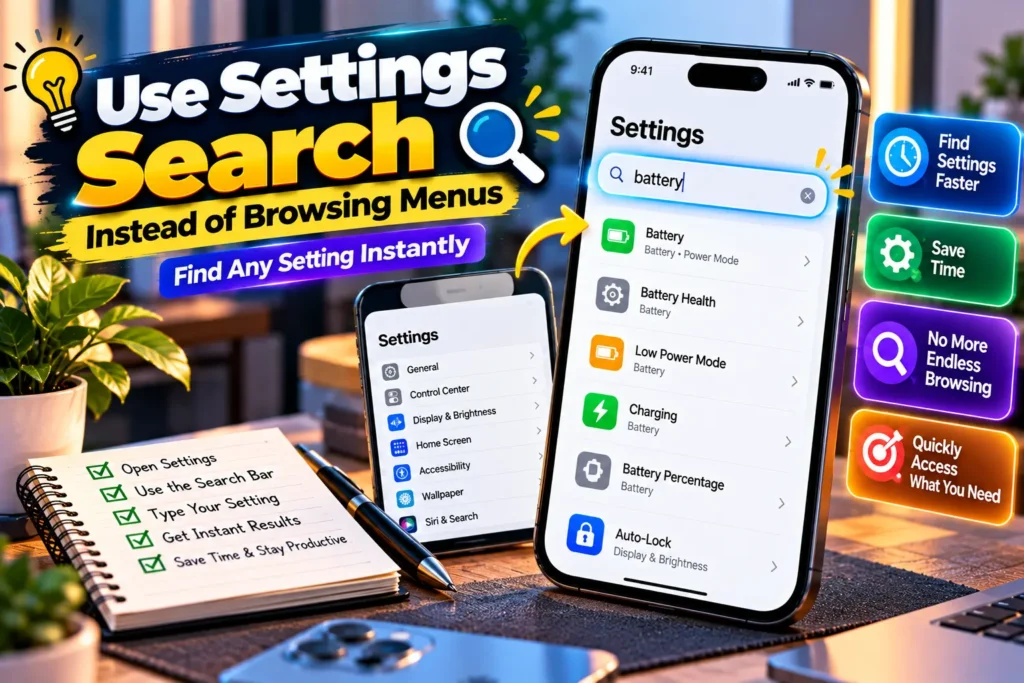
One of the simplest Smartphone Tricks is to search directly for the setting you need.
Modern smartphones contain hundreds of options. Instead of opening several menus, open the Settings app and use its search function.
For example, you can search for:
- Battery
- Hotspot
- App permissions
- Screen time
- Dark mode
- Location
- Keyboard
- Backup
This is particularly helpful because settings are organised differently across Samsung Galaxy, Google Pixel, Xiaomi, OnePlus, Motorola, vivo, OPPO, realme, and other Android devices.
Why This Trick Helps
It saves time and reduces confusion when instructions you find online do not exactly match your phone’s menu layout.
2. Review App Permissions Regularly
App permissions determine whether applications can access features such as your camera, microphone, contacts, photos, and location.
Open your phone’s privacy or permission settings and review which apps have access to sensitive information.
An app should generally have access only to the features it genuinely needs.
For example, a navigation application may reasonably require location access. A basic calculator normally has little reason to need your precise location.
Choose Limited Access When Available
Modern Android and iOS versions provide more granular privacy controls. Depending on your device, you may be able to allow location access only while using an app or give an application access to selected photos instead of your entire photo library.
Removing unnecessary permissions improves privacy without requiring you to uninstall useful apps.
3. Turn On Find-My-Device Features
A lost smartphone can contain photos, messages, accounts, documents, payment apps, and other important information.
Android and iPhone users should make sure their device-location and recovery features are properly configured before the phone goes missing.
On supported devices, these services can help locate, secure, or erase a missing phone.
Do This Before You Need It
Make sure your phone is connected to your main account and that its relevant device-finding feature is enabled. Also use a strong screen lock.
This is one of those settings that may seem unnecessary until your phone is lost or stolen.
4. Use a Strong Screen Lock
A secure lock screen is one of the most important smartphone security measures.
Use a strong PIN or password rather than an easily guessed combination. Supported phones can also use fingerprint or facial authentication for convenient access.
Avoid obvious PINs based on simple sequences or information that someone who knows you could easily guess.
Biometrics and PINs Work Together
Biometric unlocking is convenient, but your device still relies on a PIN, passcode, or password in certain situations.
Therefore, do not treat your backup passcode as unimportant simply because you normally unlock the phone with your fingerprint or face.
5. Reduce Battery Drain by Checking Battery Usage
If your battery suddenly starts draining faster, check which apps are consuming the most power before changing random settings.
Both Android and iOS provide battery-usage information.
Look for apps using unusually high amounts of battery, particularly applications you rarely use.
Possible solutions include:
- Updating the app
- Restricting unnecessary background activity where appropriate
- Adjusting location permissions
- Reducing excessive notifications
- Removing an app you no longer need
Avoid Closing Every App Repeatedly
Constantly force-closing every application is generally unnecessary. Mobile operating systems are designed to manage background applications.
Focus on identifying genuinely problematic apps instead.
6. Use Battery Saver When Necessary
Battery Saver on Android and Low Power Mode on iPhone can extend remaining battery life when charging is not immediately available.
These modes typically reduce or limit certain background processes and activities.
They are particularly useful while travelling, during long days outside, or when electricity and charging access are limited.
Understand the Trade-Off
Power-saving modes may delay some background activity or reduce certain performance-related features.
Use them when longer battery life is more important than maximum performance.
7. Control Screen Brightness
The display is an important part of your phone’s power consumption, so unnecessary brightness can shorten battery life.
Adaptive or automatic brightness works well for many users because the phone adjusts the display according to surrounding light.
You can also reduce brightness manually when indoors.
Avoid making the display so dim that reading becomes uncomfortable. The aim is efficient use, not the lowest possible brightness.
8. Manage Notifications Instead of Muting Everything
Constant notifications can make it difficult to focus and can hide genuinely important alerts.
Instead of disabling all notifications, decide which applications deserve your attention.
You might keep alerts enabled for:
- Calls and important messages
- Banking and transaction notifications
- Calendar reminders
- Delivery updates
- Security alerts
Promotional shopping notifications, games, and rarely used apps can often be reduced or disabled.
Use Notification Categories Where Available
Some Android applications divide alerts into categories. This may let you disable promotional notifications while keeping important account or order updates.
iPhone users can also customise notification appearance and delivery through system settings.
9. Use Do Not Disturb for Better Focus
Do Not Disturb and Focus-style features help temporarily silence distractions without requiring you to change every application’s settings.
You can use them while studying, sleeping, attending meetings, or working.
Depending on your phone, you can allow exceptions for selected contacts, repeated calls, alarms, or important applications.
This makes Do Not Disturb more practical than simply putting the phone on silent.
10. Free Up Storage Without Deleting Important Files
Low storage can prevent downloads, interfere with updates, and make everyday phone management frustrating.
Start by checking your phone’s storage dashboard. It can help identify large categories such as videos, photos, downloads, apps, and cached data.
Start With Safe Cleanup
Consider removing:
- Old downloaded files
- Duplicate or unwanted photographs
- Large videos you have already backed up
- Offline media you no longer need
- Apps you stopped using
Be careful before deleting app data because it may remove locally stored information or sign you out.
Back up important photos and documents before performing a major cleanup.
11. Use Cloud Backup Carefully
Cloud services can help protect photos, contacts, documents, and other important information if a phone is damaged or lost.
However, backup settings should be reviewed rather than assumed.
Check what is actually being backed up, which account is being used, and whether your available cloud storage is sufficient.
For users with limited mobile data, it may also be helpful to configure large backups to occur over Wi-Fi where supported.
12. Reduce Mobile Data Usage
Managing mobile data is particularly useful when you are on a limited data plan or travelling in an area with unreliable connectivity.
Both Android and iPhone provide tools for checking which apps consume mobile data.
You can reduce unnecessary usage by:
- Downloading large files over Wi-Fi
- Saving music or videos offline before travelling
- Restricting mobile data for non-essential apps where supported
- Reducing streaming quality when appropriate
- Disabling automatic media downloads in messaging apps if they consume too much data
Watch Background Data
Some applications continue transferring information even when you are not actively using them.
Restrict background data selectively rather than disabling it for essential apps that need timely updates.
13. Learn Screenshot Shortcuts and Editing Tools
Screenshots are useful for saving receipts, directions, error messages, booking details, and other temporary information.
After taking a screenshot, many phones immediately provide tools to crop, annotate, share, or delete it.
Some devices also support scrolling or full-page screenshots for capturing longer pages.
Protect Private Information
Before sharing a screenshot, inspect the entire image.
Crop or hide personal information such as phone numbers, addresses, account details, QR codes, email addresses, or private conversations when necessary.
14. Improve Smartphone Photography With Simple Techniques
You do not need to change dozens of camera settings to take better photos.
A few simple habits often make the biggest difference.
Clean the Camera Lens
A fingerprint or dust on the lens can make photos look hazy. Gently cleaning the camera lens before taking an important picture can noticeably improve clarity.
Tap to Focus
Tap the main subject on the screen before taking the photograph. This tells the camera where you want focus and, on many phones, helps determine exposure.
Use Grid Lines
Camera grid lines can help you keep horizons straight and improve composition.
They are especially useful for architecture, landscapes, products, food, and social-media photos.
Avoid Unnecessary Digital Zoom
Digital zoom can reduce image quality, particularly on phones without an appropriate optical telephoto camera.
When safe and practical, moving closer to the subject can produce a better result.
15. Use Keyboard Shortcuts and Text Replacement
If you repeatedly type the same information, text replacement can save time.
Depending on your keyboard and operating system, you can create shortcuts that expand into longer phrases.
For example, a short custom abbreviation could expand into a frequently used business phrase.
Do not create shortcuts for passwords, PINs, or other sensitive credentials.
Try Voice Typing
Voice typing is useful for longer notes and messages when typing is inconvenient.
Always review the transcription before sending it, especially when names, technical terms, Hindi words, or regional-language expressions are involved.
16. Use One-Handed Features on Large Phones
Large smartphone displays are excellent for videos and reading, but reaching the top of the screen can be difficult.
Many devices provide one-handed modes, keyboard resizing, or gestures that make controls easier to reach.
Search your phone’s settings for “one-handed mode” or similar accessibility and display options.
It can make daily use noticeably more comfortable, especially on larger phones.
17. Set Up Emergency Information
Supported smartphones can store emergency details that may be accessible from the lock screen.
Available options vary, but they can include emergency contacts or other information you choose to provide.
Check your phone’s Safety, Emergency, Health, or lock-screen settings to see what is available.
Only add information you are comfortable making accessible in an emergency.
18. Keep Your Smartphone Updated
Software updates are important because they can include security fixes, bug fixes, compatibility improvements, and new features.
Check periodically for operating-system and application updates.
Before a major operating-system upgrade, make sure important data is backed up and that your phone has enough available storage.
Do Not Ignore Security Updates
Even if you do not care about new visual features, security updates remain important.
Phones eventually reach the end of their manufacturer’s software-support period. If a device no longer receives security updates, consider that limitation when deciding how long to keep using it for sensitive activities.
19. Use Quick Settings and Control Center
Frequently opening the full Settings app wastes time when your phone already provides quick controls.
Android’s Quick Settings and iPhone’s Control Center provide fast access to commonly used features.
Depending on your device, you may be able to customise controls for features such as:
- Wi-Fi
- Bluetooth
- Flashlight
- Screen recording
- Brightness
- Focus modes
- Battery controls
- Mobile hotspot
Arrange the controls you use most often so they are easier to reach.
20. Learn Your Phone’s Accessibility Features
Accessibility settings are useful for far more people than many users realise.
Depending on your device, options can include larger text, magnification, captions, voice control, colour adjustments, sound recognition, screen readers, and touch-related customisation.
These features can make a phone easier to use for people with different visual, hearing, mobility, or interaction needs.
They can also help temporarily—for example, larger text may improve readability when you are tired or using the phone at a distance.
Quick Comparison of Useful Smartphone Tricks
| Smartphone Trick | Main Benefit | Best For |
|---|---|---|
| Permission review | Better privacy | All users |
| Battery usage check | Finding battery-draining apps | Heavy phone users |
| Storage cleanup | More free space | Phones with limited storage |
| Do Not Disturb | Fewer distractions | Students and professionals |
| Camera grid | Better composition | Mobile photography |
| Data controls | Reduced mobile data use | Limited-data plans |
| Device finder | Lost-phone recovery | All users |
| Text replacement | Faster typing | Frequent messaging |
Common Smartphone Mistakes to Avoid
Some habits can make a smartphone less secure or less convenient.
One common mistake is installing unnecessary applications from untrusted sources. Apps should ideally come from trusted stores and reputable developers, while requested permissions should still be reviewed.
Another mistake is postponing important software updates indefinitely. Updates may contain security and stability improvements.
Also avoid using the same weak password across important accounts. Where available, use strong, unique passwords and appropriate multi-factor authentication.
Finally, do not delete random system files, disable unfamiliar system services, or follow questionable “speed boost” tricks without understanding what they do. Aggressive optimisation can sometimes create more problems than it solves.
How to Choose the Right Smartphone Tricks for Your Needs
You do not need to enable every feature mentioned in this guide.
Start with the problem you actually want to solve.
If your battery runs out quickly, check battery usage and display settings. If storage is full, review large files and unused applications. If privacy is your priority, review permissions, lock-screen security, and account protection.
For productivity, focus on notifications, Focus or Do Not Disturb modes, text replacement, and quick controls.
Making a few useful changes is better than changing dozens of settings you do not understand.
Frequently Asked Questions
What are the most useful Smartphone Tricks?
The most useful tricks include reviewing app permissions, enabling device-finding features, checking battery usage, controlling notifications, cleaning unnecessary storage, using quick settings, and keeping software updated. The best options depend on how you use your phone, so start with features that solve a specific problem.
How can I make my smartphone battery last longer?
Start by checking battery usage to identify apps consuming unusual amounts of power. Reduce unnecessary screen brightness, use Battery Saver or Low Power Mode when required, and review excessive background activity and location access. Battery condition also changes naturally with age, so settings cannot completely restore an older battery’s original capacity.
How can I make my smartphone faster?
Remove apps you no longer use, keep enough storage available, restart the phone if an application or process is behaving abnormally, and install relevant software updates. Avoid random “RAM cleaner” or “booster” apps that promise unrealistic performance improvements. Older hardware may still have performance limitations that software changes cannot fully solve.
Are smartphone tricks safe to use?
Built-in features and settings are generally the safest place to start. Be cautious with tricks requiring unknown APK files, unofficial software, unusual permissions, or disabling security features. Before changing an unfamiliar advanced setting, understand what it does and whether you can reverse the change safely.
Do these Smartphone Tricks work on both Android and iPhone?
Most concepts apply to both Android phones and iPhones, including permission management, battery monitoring, storage management, device finding, notifications, backups, and camera techniques. However, exact menu names and available features differ by operating system version, manufacturer, and model, so you may need to search Settings for the equivalent option.
Conclusion
Smartphone Tricks are most useful when they make everyday phone use simpler, safer, and more efficient. You do not need complicated hacks or extra applications to get more value from your device.
Start with the essentials: review app permissions, secure your lock screen, enable your device-finding service, check battery and storage usage, manage notifications, and keep your software updated. Then explore convenience features such as camera grids, quick controls, text replacement, one-handed mode, and accessibility options.
Open your phone’s Settings app today and choose three features from this guide that solve problems you regularly experience. Small, thoughtful changes can make your smartphone noticeably easier to use.