
Introduction
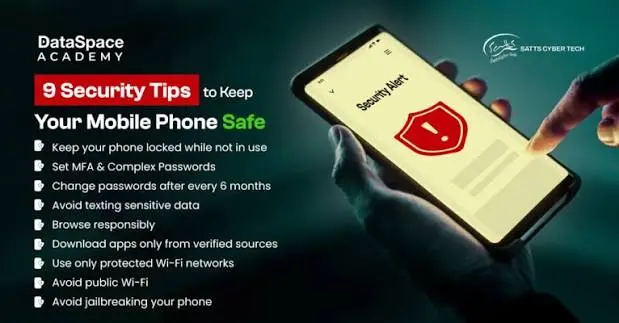
Mobile Security Tips can help you protect your smartphone from hackers, malicious apps, phishing scams, account takeovers, data theft, and unauthorized access. Your phone may contain private messages, photos, emails, saved passwords, financial information, work documents, and access to important online accounts.
The good news is that strong mobile security does not require advanced technical knowledge. Simple habits such as using a strong screen lock, installing software updates, enabling multi-factor authentication, reviewing app permissions, backing up your data, and being careful with links can significantly improve your security.
This guide explains practical mobile security tips for iPhone and Android users in the United States. It also covers common mistakes, public Wi-Fi risks, lost or stolen phones, phishing, app security, privacy settings, and steps you can take if you suspect your phone or accounts have been compromised.
What Is Mobile Security?
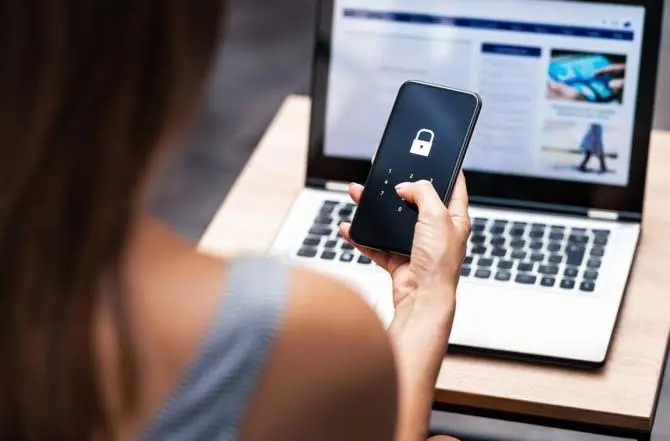
Mobile security is the practice of protecting a smartphone, tablet, its applications, accounts, connections, and personal information from unauthorized access, malware, scams, theft, and other digital threats.
A secure phone uses multiple layers of protection rather than relying on one feature. These layers can include:
- A strong device passcode or biometric lock
- Automatic operating system and app updates
- Multi-factor authentication
- Secure and unique passwords
- Trusted app sources
- Privacy and permission controls
- Data backups
- Device tracking and remote-wipe features
- Phishing and scam awareness
- Secure network practices
The National Institute of Standards and Technology (NIST) treats mobile-device security as a combination of technologies, policies, and practices covering the device throughout its lifecycle.
1. Use a Strong Screen Lock
One of the simplest mobile security tips is also one of the most important: lock your phone whenever you are not using it.
Use a strong passcode rather than an easily guessed combination such as your birthday, 123456, or a repeated number. The Federal Trade Commission recommends using at least a six-digit passcode and enabling automatic locking.
Where supported, use Face ID, Touch ID, or fingerprint authentication as an additional layer of protection.Mobile security tips are important for protecting your personal data and privacy. By following simple mobile security tips, you can keep your device safer from threats. Strong passwords are one of the most useful mobile security tips for every smartphone user. Another helpful mobile security tips practice is keeping your apps and operating system updated. Using trusted apps is also among the essential mobile security tips to avoid malware and scams. Finally, these mobile security tips can help you protect your accounts, files, and personal information.
Why a strong passcode matters
If someone finds or steals your unlocked phone, they may be able to access email, photos, messages, payment apps, social media accounts, and other sensitive information.
For better protection:
- Use a longer passcode when practical.
- Avoid birthdays and other personal numbers.
- Set your device to lock automatically.
- Do not share your passcode casually.
- Use biometric authentication when appropriate.
2. Keep Your Phone and Apps Updated
Software updates are not just about adding new features. They can also fix security vulnerabilities that attackers could exploit.
The FTC recommends installing operating system and app updates promptly and enabling automatic updates when available.
What should you update?
Check for updates for:
- iOS or Android
- Mobile applications
- Web browsers
- Messaging applications
- Security-related software
- Google Play system components on Android
Android users can check their Android version, security update status, and Google Play system update from device settings.
Practical tip: If your phone repeatedly shows an important security update, avoid selecting “Remind me later” indefinitely.
3. Enable Multi-Factor Authentication
Multi-factor authentication, commonly called MFA, requires more than one form of verification before an account can be accessed.
For example, you may enter a password and then confirm the login through an authenticator app, security key, or another verification method.
CISA recommends MFA for important accounts and identifies phishing-resistant methods such as FIDO authentication and passkeys as strong options where available.
Turn on MFA for these accounts first
Prioritize accounts that could expose other accounts or sensitive information:
- Primary email
- Apple or Google account
- Banking and financial services
- Social media
- Cloud storage
- Work accounts
- Shopping accounts
MFA is particularly useful because a stolen password alone may not be enough for an attacker to complete the login.
4. Use Unique, Strong Passwords
Never rely on one password for every account.
If the same password is exposed through one service, attackers may try it on your email, banking, shopping, and social media accounts.
CISA recommends using long, unique passwords and a password manager to create and store them.
A practical password strategy
Instead of trying to memorize dozens of passwords, use a reputable password manager. Create a strong master password or passphrase and let the manager generate unique credentials for individual accounts.
Avoid passwords based on:
- Your name
- Birthday
- Phone number
- Pet’s name
- Address
- Simple number sequences
- Common words
5. Download Apps From Trusted Sources
Malicious applications can expose personal information, display unwanted advertisements, steal credentials, or perform other harmful activities.
For Android users, Google recommends downloading apps through Google Play and provides Google Play Protect to check for potentially harmful applications.
Be particularly cautious with apps offered through links in text messages, emails, social media posts, or unfamiliar websites.
Before installing an app, ask:
- Do I recognize the developer?
- Does the app have a legitimate purpose?
- Are the requested permissions reasonable?
- Is the app available through an official app store?
- Does the app have a credible privacy policy?
- Do I really need it?
Avoid installing an application simply because a pop-up claims that your phone is infected or that you have won a prize.Mobile security tips are important for protecting your personal data and privacy. By following simple mobile security tips, you can keep your device safer from threats. Strong passwords are one of the most useful mobile security tips for every smartphone user. Another helpful mobile security tips practice is keeping your apps and operating system updated. Using trusted apps is also among the essential mobile security tips to avoid malware and scams. Finally, these mobile security tips can help you protect your accounts, files, and personal information.
6. Review App Permissions Regularly
Many apps request access to information or hardware such as your location, microphone, camera, contacts, photos, or files.
Some permissions may be necessary for an app’s primary function. Others may not be.
Review permissions periodically and remove access that an app does not reasonably need.
For example, a basic calculator generally has no obvious reason to access your contacts or microphone.Mobile security tips are important for protecting your personal data and privacy. By following simple mobile security tips, you can keep your device safer from threats. Strong passwords are one of the most useful mobile security tips for every smartphone user. Another helpful mobile security tips practice is keeping your apps and operating system updated. Using trusted apps is also among the essential mobile security tips to avoid malware and scams. Finally, these mobile security tips can help you protect your accounts, files, and personal information.
Check these permissions
Pay particular attention to:
- Location
- Camera
- Microphone
- Contacts
- Photos
- Files and media
- Bluetooth
- Nearby devices
Reducing unnecessary permissions can improve privacy and limit the information available to an app if it is compromised.
7. Be Careful With Phishing Texts and Emails
Phishing is one of the most common ways criminals try to obtain passwords, payment information, or other sensitive data.
A message may claim that your bank account is locked, a package cannot be delivered, your subscription has expired, or you need to verify your identity.
The FTC advises consumers to be cautious with unexpected messages and suspicious links.
Signs of a suspicious message
Watch for:
- Unexpected requests for passwords or payment information
- Urgent threats or pressure
- Strange sender addresses
- Suspicious links
- Unexpected attachments
- Requests for verification codes
- Promises of prizes or refunds
- Messages asking you to bypass normal procedures
Instead of tapping a link in an unexpected message, open the company’s official app or type its known website address yourself.
8. Avoid Sensitive Activities on Untrusted Public Wi-Fi
Public Wi-Fi can be convenient in airports, hotels, restaurants, libraries, and other locations. However, users should still be cautious when connecting to networks they do not control.
Avoid entering sensitive information on an unfamiliar network unless you have a trusted, secure connection and understand the risksMobile security tips are important for protecting your personal data and privacy. By following simple mobile security tips, you can keep your device safer from threats. Strong passwords are one of the most useful mobile security tips for every smartphone user. Another helpful mobile security tips practice is keeping your apps and operating system updated. Using trusted apps is also among the essential mobile security tips to avoid malware and scams. Finally, these mobile security tips can help you protect your accounts, files, and personal information.
.
For highly sensitive activities, such as accessing financial accounts, consider using your cellular connection instead.
Also make sure your phone does not automatically connect to unknown Wi-Fi networks.
9. Turn On Find My Device Features
A lost phone does not have to become a permanent loss of your data.
Both major mobile platforms provide tools that can help users locate, lock, or otherwise protect lost devices. The FTC specifically recommends enabling device-finding capabilities and using them to lock or erase a device when appropriate.
If you use an iPhone
Apple provides Find My and additional protections such as Stolen Device Protection on supported iPhones. Apple states that Stolen Device Protection adds security requirements for certain sensitive actions, particularly when the iPhone is away from familiar locations.
If you use Android
Use Google’s device-finding and security features available for your device and account. Keep the relevant location and account settings configured so that you can take action if the phone is lost.
10. Back Up Your Important Data
A backup will not prevent your phone from being stolen or infected, but it can reduce the damage caused by loss, theft, device failure, or certain security incidents.
The FTC recommends regularly backing up mobile-device data to the cloud or a computer.
Back up important information such as:
- Photos and videos
- Contacts
- Documents
- Important messages
- Device settings
- Other irreplaceable files
Make sure your backup account itself is protected with a strong password and MFA.
11. Protect Your Mobile Carrier Account
Your phone number can be connected to email accounts, financial services, social media, and authentication systems.
CISA’s mobile communications guidance recommends setting a PIN on your telecommunications account and using MFA where the carrier supports it. These measures can help reduce risks associated with SIM-swapping attacks.
Contact your carrier to learn what account-level security controls are available.
A carrier account PIN is not a replacement for strong passwords and MFA, but it can add another layer of protection.
12. Limit What Appears on Your Lock Screen
Notifications can reveal private information even when your phone is locked.
Depending on your settings, someone near your phone might see parts of:
- Text messages
- Email previews
- Authentication codes
- Calendar details
- Banking notifications
- Private conversations
Review notification privacy settings and consider hiding sensitive previews from the lock screen.
This is particularly useful if you frequently leave your phone on a desk, in a shared office, classroom, or other public environment.
13. Be Careful With QR Codes
QR codes are convenient, but scanning one can take you to a malicious website or a fake login page.
Do not assume a QR code is safe simply because it appears on a poster, email, package, or message.
Before entering credentials or payment information after scanning a QR code, check the destination website carefully.
If the page asks for an unexpected password, verification code, payment, or sensitive information, stop and verify the request through an official channel.
14. Do Not Ignore Unusual Phone Behavior
Unexpected behavior does not automatically mean that your phone has been hacked. Battery drain, overheating, crashes, or pop-ups can have many ordinary causes.
However, unusual activity deserves attention when combined with other warning signs.
Look for:
- Apps you do not remember installing
- Unexpected account-login alerts
- Unusual messages sent from your accounts
- Repeated password-reset requests
- Unknown device sessions
- Unusual financial activity
- Persistent pop-ups
- Unexpected changes to security settings
If you suspect an account has been compromised, change the password from a trusted device and review recent account activity. Contact your bank or service provider directly if financial information may be involved.
15. Protect Your Phone When Traveling
Travel can introduce additional security challenges because you may use unfamiliar networks, charging stations, public computers, and shared environments.
Before traveling:
- Update your phone.
- Back up important information.
- Enable device tracking.
- Confirm your screen lock is active.
- Enable MFA.
- Remove unnecessary apps.
- Review account recovery information.
- Know how to remotely lock or erase your device.
Avoid connecting your phone to unknown accessories or computers unless you understand what they are doing.
Mobile Security Tips: Quick Comparison
| Security Practice | What It Protects | What You Should Do |
|---|---|---|
| Strong screen lock | Device data | Use a strong passcode and biometric protection |
| Software updates | Security vulnerabilities | Enable automatic updates |
| MFA | Online accounts | Enable it on important accounts |
| Password manager | Account credentials | Use unique passwords |
| App permissions | Personal information | Remove unnecessary access |
| Backups | Photos and files | Back up regularly |
| Device tracking | Lost or stolen phones | Enable Find My or equivalent features |
| Carrier PIN | Mobile account | Add a carrier security PIN |
| Phishing awareness | Credentials and money | Verify unexpected requests |
| Privacy settings | Personal data | Review permissions and sharing |
Common Mobile Security Mistakes to Avoid
Even people who understand basic cybersecurity can make simple mistakes.
Reusing the same password
Using one password across several accounts creates unnecessary risk. If one service is compromised, attackers may attempt the same credentials elsewhere.
Delaying security updates
Repeatedly postponing updates can leave known vulnerabilities unpatched.
Installing apps from random websites
Unknown app sources can increase the risk of installing harmful software.
Clicking urgent links
Scammers often use urgency to discourage careful verification.
Leaving Bluetooth or Wi-Fi settings unmanaged
Review your connection settings and disable features you do not need, particularly when traveling or in unfamiliar environments.
Ignoring account alerts
A login alert, password-reset notification, or security warning may be an early sign of attempted account access.
What Should You Do If Your Phone Is Lost or Stolen?
Act quickly. Your first priority is protecting your accounts and personal information.
Step 1: Try to locate the device
Use the official device-finding service associated with your phone.
Step 2: Lock the device
If available, activate Lost Mode or another remote-lock feature.
Step 3: Protect important accounts
Change passwords for critical accounts if you believe someone may have accessed your phone.
Start with your primary email, Apple or Google account, financial accounts, and other accounts that can be used to reset passwords.
Step 4: Contact your mobile carrier
Tell the carrier that the phone is missing and ask about securing the mobile account and number.
Step 5: Contact financial institutions if necessary
If payment information or banking apps may have been accessed, contact the relevant financial institution through an official phone number or app.
Apple also recommends promptly marking a stolen iPhone or iPad as lost through its device-finding service.
How Often Should You Check Your Mobile Security Settings?
A practical approach is to perform a quick security review every few months and whenever you install major apps, change devices, or notice unusual account activity.
Mobile security tips are important for protecting your personal data and privacy. By following simple mobile security tips, you can keep your device safer from threats. Strong passwords are one of the most useful mobile security tips for every smartphone user. Another helpful mobile security tips practice is keeping your apps and operating system updated. Using trusted apps is also among the essential mobile security tips to avoid malware and scams. Finally, these mobile security tips can help you protect your accounts, files, and personal information.
During the review:
- Check for software updates.
- Review installed apps.
- Review app permissions.
- Check your important account sessions.
- Confirm MFA is enabled.
- Review your backup status.
- Confirm device tracking is active.
- Check your carrier security settings.
- Review lock-screen notifications.
- Remove apps and accounts you no longer use.
If you want to learn more about using Android devices effectively, read our Android Tips guide for practical tips on battery life, storage, security, notifications, and everyday smartphone use.
For Apple users, our iPhone Tips guide covers useful features, battery-saving settings, privacy, storage, photography, and shortcuts.
If you are comparing different devices before buying, check our Android Phone Comparison guide to compare performance, display, camera, battery, storage, and other important features.
For official information about Android features and security, visit Android’s official website.
For official information about iPhone features and software, visit Apple’s official iPhone page.
Frequently Asked Questions
What are the most important mobile security tips?
The most important steps include using a strong screen lock, keeping your operating system and apps updated, enabling MFA, using unique passwords, installing apps from trusted sources, reviewing permissions, backing up important data, and enabling device-tracking features. These protections work together, so relying on only one security measure is not enough.
How can I protect my phone from hackers?
Start with the basics: use a strong passcode, install security updates promptly, enable MFA on important accounts, avoid suspicious links, download apps from trusted sources, and review permissions. Also protect your email and Apple or Google account because these accounts can provide access to other services.
Is public Wi-Fi safe on a smartphone?
Public Wi-Fi is not automatically unsafe, but users should treat unfamiliar networks cautiously. Avoid sensitive activity on networks you do not trust, disable automatic connections to unknown networks, and use your cellular connection when appropriate. Always verify that websites and apps are legitimate before entering passwords or financial information.
Should I install antivirus software on my phone?
Mobile security depends on more than antivirus software. Modern iPhones and Android devices already include built-in security protections, while Android devices use Google Play Protect to scan for harmful applications. Good security habits, software updates, safe app installation, MFA, and careful browsing remain important regardless of whether additional security software is installed.
What should I do if I think my phone has been hacked?
First, avoid entering additional sensitive information on the potentially compromised device. From a trusted device, secure important accounts by changing passwords and reviewing recent login activity. Contact your bank if financial information may be exposed. Remove suspicious apps, install available updates, and consider professional technical assistance if the problem continues.
Conclusion
Strong mobile security tips are mostly about consistent habits rather than complicated technology. Start by locking your phone with a strong passcode, keeping software updated, enabling MFA, using unique passwords, downloading apps from trusted sources, and reviewing permissions.
Then add layers such as regular backups, device tracking, carrier account protection, notification privacy, and phishing awareness.
You do not need to change every setting at once. Start today by checking your phone for pending security updates, confirming that automatic updates are enabled, and turning on MFA for your most important account. These small steps can make your smartphone significantly harder to misuse.