
Introduction
Smartphone Tips can help you get more from your phone without buying a new device. Whether you use an iPhone or Android phone, a few simple changes can improve battery life, performance, storage, privacy, security, and everyday convenience.
Your smartphone may contain photos, messages, emails, payment information, passwords, contacts, and access to important online accounts. That makes good phone habits useful for more than convenience. The Federal Trade Commission recommends using a strong screen lock, keeping software updated, backing up data, and enabling features that help locate or remotely protect a lost phone.
This guide covers practical smartphone tips for everyday users in the United States, including ways to make your phone faster, extend battery life, protect personal information, manage apps, free storage, improve connectivity, and avoid common mistakes.
1. Keep Your Smartphone Software Updated
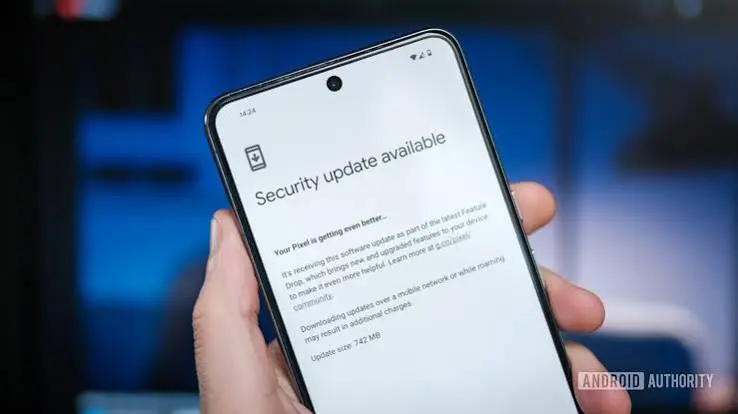
One of the simplest smartphone tips is to install operating system and app updates regularly.
Software updates can include security fixes, bug fixes, performance improvements, and new features. The FTC recommends keeping operating systems and apps updated because updates can contain important protections against security threats.
How to enable automatic updates
- Open your phone’s Settings.
- Look for Software Update, System Update, or a similar option.
- Enable automatic updates when available.
- Open your app store and enable automatic app updates.
- Restart the phone when an important update requires it.
Avoid repeatedly postponing security updates. If your phone manufacturer no longer provides security updates, it may be worth considering a newer device.
2. Use a Strong Screen Lock
A screen lock is your first line of defense if your phone is lost or stolen.
Use a strong PIN, password, or biometric authentication such as fingerprint or facial recognition. The FTC recommends a passcode of at least six digits.
Avoid easy combinations such as:
- 123456
- 000000
- Your birthday
- Your phone number
- Repeated or predictable numbers
Biometrics can make unlocking convenient, but keep a strong backup passcode as well.
3. Turn On Two-Factor Authentication
Two-factor authentication, commonly called 2FA or MFA, adds another security layer to accounts.
Instead of relying only on a password, your account may require a code, authentication app, security key, or another verification method.
Prioritize 2FA for:
- Banking
- Social media
- Cloud storage
- Shopping accounts
- Work accounts
- Your Apple or Google account
CISA recommends using multi-factor authentication where it is available because it provides additional protection beyond passwords.
4. Back Up Your Smartphone Regularly
A backup can save you from losing important photos, contacts, messages, documents, and other information after a lost, stolen, damaged, or malfunctioning phone.
You can typically back up your phone using:
- iCloud
- Google backup services
- A computer
- An external storage device
The FTC recommends regularly backing up phone data and enabling tools that can help locate, lock, or erase a lost device.
A simple backup routine
Check your backup settings once a month. Make sure your most important photos and documents are actually syncing instead of assuming everything is backed up.
5. Improve Smartphone Battery Life
Battery performance depends on the phone, battery condition, apps, network conditions, screen settings, and how you use the device.
For better battery life:
- Reduce unnecessary screen brightness.
- Use adaptive or automatic brightness.
- Turn off features you do not need.
- Review apps that use significant background power.
- Use Battery Saver or Low Power Mode when appropriate.
- Keep your phone’s software updated.
- Avoid keeping unnecessary apps running continuously.
Don’t obsess over closing every app
Modern smartphones are designed to manage background applications. Constantly force-closing apps is not always beneficial and can sometimes make reopening them less efficient.
Instead, focus on apps that genuinely consume excessive battery or data.
6. Manage Your Smartphone Storage
A phone can become difficult to use when storage is nearly full.
Photos, videos, downloads, large apps, podcasts, and cached files can consume significant space.
Start by checking:
Settings → Storage
Then look for the largest categories.
What to delete first
- Duplicate photos
- Old screen recordings
- Unused apps
- Downloaded videos
- Large files
- Old podcasts
- Unnecessary documents
- Offline maps or media you no longer need
Before deleting important files, make sure they are backed up.
7. Remove Apps You Don’t Use
Unused apps take up storage and may retain permissions you no longer need.
CISA recommends periodically reviewing installed applications, deleting unnecessary apps, and limiting the information and permissions apps can access.
A simple monthly app cleanup can make your phone easier to manage.
Ask yourself:
Have I used this app in the last few months?
If the answer is no, consider uninstalling it.
You can always reinstall an app later if you genuinely need it.
8. Review App Permissions
An app does not necessarily need access to every feature on your phone.
Review permissions for:
- Location
- Camera
- Microphone
- Contacts
- Photos
- Bluetooth
- Files
- Notifications
CISA recommends using least-privilege access, meaning apps should receive only the permissions they actually need. It also recommends reviewing location access.
For example, a calculator app generally has no obvious reason to continuously access your location or contacts.
9. Limit Location Sharing
Location information can be useful for maps, transportation, weather, food delivery, and other services. But not every app needs continuous access.
When available, choose options such as:
- Never
- Ask Next Time
- While Using the App
- Always
For many apps, “While Using the App” provides a reasonable balance between functionality and privacy.
The FTC also recommends reviewing location settings and asking whether an app genuinely needs to know where you are.
10. Be Careful With Public Wi-Fi
Public Wi-Fi can be convenient in airports, hotels, restaurants, libraries, and coffee shops. However, you should avoid treating every public network as trustworthy.
When using unfamiliar Wi-Fi:
- Avoid entering sensitive information unless necessary.
- Confirm that websites use HTTPS.
- Keep your device updated.
- Disable automatic connections to networks you don’t trust.
- Use cellular data for particularly sensitive activities when practical.
Also remember that scammers may create networks with names that resemble legitimate public Wi-Fi.
11. Watch Out for Suspicious Text Messages
Smishing is phishing delivered through text messages.
A message might claim that:
- Your package could not be delivered.
- Your bank account has a problem.
- You won a prize.
- Your payment failed.
- Your account needs verification.
- You owe an unexpected fee.
Do not click suspicious links simply because a message appears urgent.
Instead, open the official app or type the organization’s known website address yourself.
The FTC advises consumers to avoid unexpected links and attachments because they may lead to malware or scams.
12. Use a Password Manager
If you have dozens of online accounts, remembering unique passwords can be difficult.
A reputable password manager can help you generate and store strong, unique passwords.
The most important principle is simple:
Do not reuse the same password across important accounts.
If one account is compromised, reused credentials can put other accounts at risk.
Your email account deserves particular attention because it may be used to reset passwords for other services.
13. Keep Your Phone Physically Safe
Digital security is important, but physical security matters too.
Avoid leaving your smartphone unattended in public places, especially when it is unlocked.
Consider using:
- A protective case
- A screen protector
- A secure lock screen
- Find My iPhone or Google’s device-finding features
- A secure place to carry your phone
CISA recommends protecting mobile devices from theft and unauthorized access and enabling available security features.
14. Enable Find-My-Device Features
Both major smartphone platforms provide tools for locating lost devices.
Depending on your phone, these features can help you:
- Find the device on a map
- Play a sound
- Lock the phone
- Display contact information
- Erase the device remotely
Set this up before your phone disappears. A security feature cannot help much if it was never enabled.
15. Clean Up Your Notifications
Too many notifications can make your phone distracting and difficult to manage.
Review which apps are allowed to send notifications.
Keep important notifications for:
- Calls
- Messages
- Banking alerts
- Security warnings
- Calendar events
- Important work communications
Turn off unnecessary notifications from games, shopping apps, promotions, and other services.
This can also make your phone feel less cluttered.
16. Improve Your Camera Results
You do not always need expensive camera equipment to take better smartphone photos.
Try these basic techniques:
Clean the camera lens
Fingerprints and dust can make photos look hazy. Gently clean the lens with a suitable soft cloth.
Use natural light
Whenever possible, position your subject where there is sufficient light.Smartphone Tips can help you use your phone more efficiently every day.
With simple Smartphone Tips, you can improve battery life and phone performance.
These Smartphone Tips can also help you keep your personal data safe and secure.
Following useful Smartphone Tips makes it easier to manage apps and storage.
Regular Smartphone Tips can help you discover hidden features on your device.
By applying these Smartphone Tips, you can enjoy a smoother smartphone experience with the right Smartphone Tips.
Keep the phone steady
Hold your phone with both hands or use a stable surface when photographing in low light.
Avoid unnecessary digital zoom
Moving closer to your subject is often better than relying heavily on digital zoom.
Tap to focus
Before taking a photo, tap the subject on your screen to help the camera focus on the area that matters.
17. Use Do Not Disturb More Effectively
Do Not Disturb and Focus modes can help separate work, sleep, study, driving, and personal time.
Instead of manually silencing your phone every time, create schedules.
For example:
Sleep: Silence most notifications overnight.
Work: Allow calls from important contacts while limiting social media notifications.
Driving: Use a driving-focused mode to reduce distractions.
These settings can turn your phone from a source of constant interruptions into a more controlled tool.
18. Check Which Apps Use the Most Data
If your mobile plan has a data limit, monitor your usage regularly.
Look for apps that consume large amounts of cellular data, especially:
- Video streaming
- Social media
- Cloud backups
- Video calls
- Music streaming
- Automatic downloads
Where appropriate, enable Wi-Fi-only downloads for large files.
This is especially useful when traveling or using a limited-data plan.
19. Use Battery Saver When You Actually Need It
Battery Saver or Low Power Mode is useful when you are away from a charger.
It may restrict certain background activities, reduce performance, limit visual effects, or change synchronization behavior depending on the phone.
Use it when:
- Your battery is low.
- You are traveling.
- You cannot access a charger.
- You need the phone to remain available for emergencies.
You do not necessarily need to keep power-saving mode enabled permanently.
20. Don’t Install Apps From Untrusted Sources
One of the most important smartphone security tips is to be careful about where apps come from.
Use the official app marketplace for your device whenever possible.Smartphone Tips can help you use your phone more efficiently every day.
With simple Smartphone Tips, you can improve battery life and phone performance.
These Smartphone Tips can also help you keep your personal data safe and secure.
Following useful Smartphone Tips makes it easier to manage apps and storage.
Regular Smartphone Tips can help you discover hidden features on your device.
By applying these Smartphone Tips, you can enjoy a smoother smartphone experience with the right Smartphone Tips.
CISA specifically recommends using curated app stores and avoiding unnecessary third-party app sources because they can increase malware risk.
Before installing an unfamiliar app, check:
- Developer information
- Reviews
- Requested permissions
- Privacy information
- Update history
- Whether the app actually provides the feature you need
Be suspicious of apps promising unrealistic results.
21. Keep Your Browser Organized
A cluttered browser can make finding important websites harder.
Periodically:
- Close unnecessary tabs.
- Delete unwanted downloads.
- Review saved passwords.
- Remove suspicious browser notifications.
- Clear browsing data when appropriate.
- Keep the browser updated.
Be careful when clearing data, however. Deleting cookies or stored website information can sign you out of websites and remove preferences.
22. Restart Your Smartphone Occasionally
A restart is a simple troubleshooting step when a phone behaves strangely.
Restarting can help when you experience:
- Temporary app problems
- Connectivity glitches
- Unusual slowdowns
- Notification problems
- Minor system issues
If a phone remains consistently slow after restarting, investigate storage, software updates, battery health, and problematic apps instead of relying on repeated restarts.
23. Don’t Ignore Overheating
Smartphones can become warm during demanding activities such as gaming, video recording, navigation, charging, or using the device in hot environments.
If your phone repeatedly becomes unusually hot, investigate the cause.
Possible factors include:
- Intensive apps
- Poor cellular signal
- High ambient temperatures
- Battery problems
- Charging issues
- Background activity
If overheating is severe, persistent, or accompanied by swelling or physical damage, stop using the device and seek qualified technical assistance.
24. Be Careful Before Selling or Trading In Your Phone
Never simply hand over an old phone with your information still on it.
Before selling, donating, or trading in a smartphone:
- Back up important information.
- Transfer your data to the new device.
- Remove physical SIM or SD cards where applicable.
- Unlink accounts and trusted-device access.
- Disable relevant device-tracking or activation locks as required.
- Perform a factory reset.
The FTC specifically recommends backing up information, removing SIM/SD cards where applicable, unlinking accounts, and erasing personal information before giving away or trading in a phone.
25. Review Your Smartphone Once a Month
You do not need to spend hours maintaining your phone.
A short monthly check can cover the essentials:Smartphone Tips can help you use your phone more efficiently every day.
With simple Smartphone Tips, you can improve battery life and phone performance.
These Smartphone Tips can also help you keep your personal data safe and secure.
Following useful Smartphone Tips makes it easier to manage apps and storage.
Regular Smartphone Tips can help you discover hidden features on your device.
By applying these Smartphone Tips, you can enjoy a smoother smartphone experience with the right Smartphone Tips.
- Install pending updates.
- Review storage.
- Delete unused apps.
- Check app permissions.
- Review location access.
- Confirm backups are working.
- Check battery usage.
- Review security settings.
- Remove suspicious downloads.
- Confirm Find My Device features are enabled.
This simple routine can prevent small problems from becoming bigger ones.
Smartphone Tips: Common Mistakes to Avoid
Even experienced smartphone users can make avoidable mistakes.
Using the same password everywhere
One compromised password can create problems across multiple accounts.
Ignoring software updates
Delaying updates can leave known security issues unresolved. Security agencies recommend keeping operating systems and apps current.
Giving every app every permission
Only provide access that an app genuinely needs.
Installing random APKs or unofficial apps
Untrusted sources can increase security risks.
Never checking storage
A nearly full phone can make normal tasks frustrating and limit your ability to take photos or install updates.
Assuming every text message is legitimate
Scammers frequently use urgency and fear to encourage people to click links or reveal information.
Waiting until a phone is lost to enable tracking
Set up device-finding features before you need them.
Smartphone Tips can help you use your phone more efficiently every day.
With simple Smartphone Tips, you can improve battery life and phone performance.
These Smartphone Tips can also help you keep your personal data safe and secure.
Following useful Smartphone Tips makes it easier to manage apps and storage.
Regular Smartphone Tips can help you discover hidden features on your device.
By applying these Smartphone Tips, you can enjoy a smoother smartphone experience with the right Smartphone Tips.
Are These Smartphone Tips the Same for iPhone and Android?
Most smartphone tips apply to both iPhone and Android devices, but the exact menus and features differ.
| Area | iPhone | Android |
|---|---|---|
| Software updates | iOS updates | Android system updates |
| App marketplace | App Store | Google Play on most devices |
| Device finding | Find My | Find My Device |
| Cloud backup | iCloud | Google backup services and manufacturer options |
| Biometric security | Face ID or Touch ID on supported models | Fingerprint or face unlock on supported models |
| Power saving | Low Power Mode | Battery Saver or similar |
| Privacy controls | iOS Privacy & Security settings | Android Privacy and Permission Manager |
Feature availability can vary by model, operating-system version, and manufacturer, so always check the settings specific to your device.
If you want to learn more about using Android devices effectively, read our Android Tips guide for practical tips on battery life, storage, security, notifications, and everyday smartphone use.
For Apple users, our iPhone Tips guide covers useful features, battery-saving settings, privacy, storage, photography, and shortcuts.
If you are comparing different devices before buying, check our Android Phone Comparison guide to compare performance, display, camera, battery, storage, and other important features.
For official information about Android features and security, visit Android’s official website.
For official information about iPhone features and software, visit Apple’s official iPhone page.
Frequently Asked Questions
What are the most important smartphone tips?
The most important smartphone tips are to keep your operating system and apps updated, use a strong screen lock, enable multi-factor authentication, back up important data, review app permissions, and enable device-finding features. These steps provide a strong foundation for smartphone security, privacy, reliability, and everyday convenience.
How can I make my smartphone battery last longer?
Reduce unnecessary screen brightness, review battery-hungry apps, use Battery Saver or Low Power Mode when needed, limit unnecessary background activity, and keep your phone updated. Poor cellular reception can also increase battery consumption, so battery drain is not always caused by an individual app.
How can I make my smartphone faster?
Start by installing pending updates and checking available storage. Remove unused apps and unnecessary files, review apps that consume excessive resources, and restart the device. If performance remains poor despite having enough storage and current software, the phone’s hardware or battery condition may be limiting performance.
How can I protect my smartphone from hackers?
Use a strong passcode, enable biometric authentication where appropriate, install software updates promptly, use multi-factor authentication for important accounts, download apps from trusted stores, review permissions, and avoid suspicious links. The FTC and CISA both recommend keeping devices and apps updated as part of basic mobile security.
Should I delete apps I don’t use?
Yes. Removing unused apps can free storage and reduce the number of applications that may have access to personal information. Before deleting an app, check whether it contains locally stored data you need. CISA recommends periodically reviewing installed apps and removing those that are no longer necessary.
Conclusion
The best Smartphone Tips are usually simple habits rather than complicated tricks. Keep your phone and apps updated, use strong authentication, back up important information, manage permissions, control location access, remove unused apps, monitor storage, and stay alert to suspicious messages.
You also do not need to change everything at once. Start with the highest-impact improvements: update your phone, strengthen your lock screen, enable 2FA, verify your backups, and turn on device-finding features.
Once those basics are handled, spend a few minutes each month reviewing storage, permissions, battery usage, and installed apps. These small maintenance habits can help your smartphone remain faster, safer, more private, and more useful for longer.