
Introduction
iPhone Tricks can help you save time, improve privacy, take better photos, manage notifications, and get more from features you may already have. Many useful iPhone functions are built into iOS but are easy to overlook.
Whether you use an iPhone for work, school, entertainment, photography, communication, or everyday tasks, these practical tips can make your device easier to use. This guide covers useful iPhone tricks for everyday productivity, Safari, screenshots, text editing, photos, privacy, battery management, and more.
Some features vary by iPhone model and iOS version, so menu names or available options may differ slightly. If a feature is unavailable on your device, check for the latest iOS update and confirm that your iPhone supports it.
1. Quickly Search Almost Anything With Spotlight
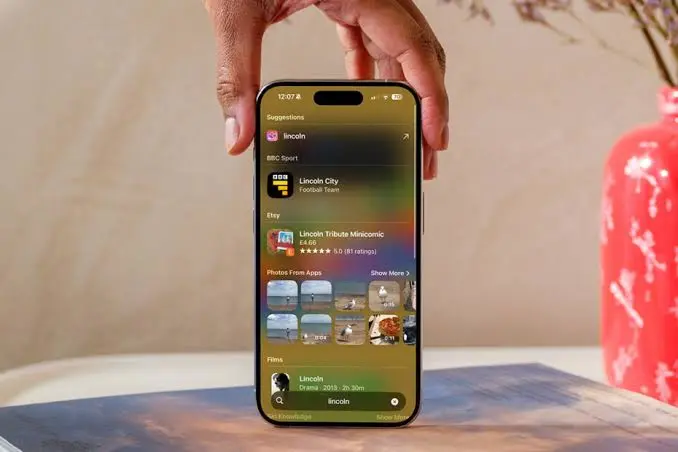
One of the easiest iPhone tricks is using Spotlight Search instead of manually opening apps and browsing through menus.
Swipe down from the middle of the Home Screen and type what you need. Spotlight can help you find apps, contacts, messages, settings, files, photos, and other information.
Why Spotlight is useful
Instead of searching through several screens, you can:
- Find an app within seconds
- Search contacts and messages
- Look for photos and files
- Find settings
- Perform calculations
- Convert measurements
- Search for information
For frequent iPhone users, Spotlight can become one of the fastest ways to navigate the phone.
2. Use Back Tap for Quick Actions
Back Tap lets compatible iPhone models respond to a double or triple tap on the back of the device.
Go to:
Settings > Accessibility > Touch > Back Tap
You can assign actions such as taking a screenshot, opening a feature, running a Shortcut, or activating other supported functions.
A practical Back Tap setup
For example, you could configure:
- Double Tap → Screenshot
- Triple Tap → Shortcut
This is particularly useful when you regularly perform the same action.
Keep in mind that accidental triggers can happen, especially if you choose a sensitive action. If Back Tap activates unexpectedly, consider changing the assigned action or disabling it.
3. Take a Full-Page Screenshot in Safari
Regular screenshots capture only what is visible on your screen. Safari can also save a full webpage as a PDF when the feature is available.
How to do it
- Open a webpage in Safari.
- Take a screenshot.
- Tap the screenshot preview.
- Select Full Page.
- Review the captured page.
- Save or share it as needed.
This is useful for saving articles, instructions, receipts, reference pages, and other long webpages.
4. Scan Documents With the Notes App
You do not always need a separate scanning app to digitize a document.
The Notes app includes document-scanning functionality on supported iOS versions.
How to scan a document
- Open Notes.
- Create or open a note.
- Tap the attachment or camera option.
- Choose Scan Documents.
- Position the document inside the camera view.
- Capture the pages.
- Save the scan.
This can be useful for receipts, forms, handwritten documents, and paperwork you need to keep digitally.
5. Copy and Paste Text Using Gestures
Text editing on an iPhone becomes faster once you learn the built-in gestures.
Common gestures include:
- Three-finger pinch in: Copy
- Three-finger pinch out: Paste
- Three-finger swipe left: Undo
- Three-finger swipe right: Redo
- Three-finger tap: Opens editing controls
Gesture availability and behavior can vary depending on the app.
If you frequently write emails, messages, notes, or documents on your iPhone, learning these gestures can reduce the need to repeatedly use editing menus.
6. Move the Cursor More Precisely
When correcting a message, placing the cursor exactly where you want it can sometimes be frustrating.
A useful trick is to press and hold the space bar on the iPhone keyboard. On supported versions of iOS, this turns the keyboard into a trackpad-like control, allowing you to move the cursor more precisely.
This is especially helpful when editing longer messages or fixing a single word in the middle of a sentence.
7. Select Text Faster
When editing text, you can often select words or portions of text using touch gestures rather than repeatedly tapping small menu options.iPhone Tricks can help you use your device more efficiently every day.
With simple iPhone Tricks, you can discover hidden features and useful shortcuts.
These iPhone Tricks are easy to follow and suitable for both beginners and advanced users.
Learning new iPhone Tricks can save time and make your daily tasks easier.
Many helpful iPhone Tricks can improve your privacy, performance, and overall experience.
Try these useful iPhone Tricks to get more out of your iPhone.
Depending on the app and iOS version, you can:
- Double-tap a word to select it
- Drag selection handles
- Use editing gestures
- Use the keyboard trackpad for more precise positioning
These small improvements can make writing on an iPhone considerably easier.
8. Use Live Text to Copy Text From Photos
Live Text can recognize text in supported photos and images.
For example, if you photograph a sign containing a phone number, address, or website, iOS may allow you to interact with that text.
Practical uses for Live Text
You can use recognized text to:
- Copy information
- Translate text
- Look up information
- Call a phone number
- Open a website
- Add information to another app
The feature depends on supported hardware, language, region, and iOS version.
9. Search Your Photos More Intelligently
The Photos app can do more than display your camera roll. Apple’s photo search can help you locate pictures using recognizable subjects, locations, people, dates, and other information.
Instead of scrolling through thousands of photos, try searching for a descriptive term.
For example, you might search for:
- Beach
- Dog
- Car
- Screenshot
- Food
- Specific locations
- A particular date
The exact results depend on what information iOS can identify in your photo library.
10. Protect Your Photos With Hidden and Recently Deleted Albums
If you have private images, the Photos app provides options for hiding photos and protecting certain albums with device authentication on supported iOS versions.
To review these options, open:
Settings > Apps > Photos
Look for the settings related to Hidden Album and authentication.
This can provide an additional privacy layer, but remember that anyone who knows your device passcode may potentially have access to information protected by that passcode.
11. Stop Websites From Tracking You Across the Web
Safari includes privacy features designed to limit certain forms of tracking.
You can review Safari privacy settings through:
Settings > Apps > Safari
Depending on your iOS version, available settings may include options related to cross-site tracking, IP address visibility, fraudulent website warnings, and privacy reports.
Why this matters
Website tracking can be used to build information about browsing activity. Safari’s privacy controls can help reduce some forms of tracking, although no browser setting eliminates every form of online tracking.
For stronger privacy, review both Safari settings and the privacy permissions granted to individual apps.
12. Check Which Apps Can Access Your Location
Location access is useful for navigation, weather, maps, delivery services, and many other applications. However, not every app needs continuous accessiPhone Tricks can help you use your device more efficiently every day.
With simple iPhone Tricks, you can discover hidden features and useful shortcuts.
These iPhone Tricks are easy to follow and suitable for both beginners and advanced users.
Learning new iPhone Tricks can save time and make your daily tasks easier.
Many helpful iPhone Tricks can improve your privacy, performance, and overall experience.
Try these useful iPhone Tricks to get more out of your iPhone.
.
Go to:
Settings > Privacy & Security > Location Services
Review which apps can access your location and choose the permission that makes sense for each one.
Where available, options may include:
- Never
- Ask Next Time Or When I Share
- While Using the App
- Always
Reducing unnecessary location access can improve privacy and may reduce background activity for some apps.
13. Review App Tracking Permissions
iOS provides controls for app tracking requests.
Go to:
Settings > Privacy & Security > Tracking
You can review tracking permissions and adjust them according to your privacy preferences.
This is particularly useful if you install many apps and want to understand how they request permission to track activity across other companies’ apps and websites.
14. Customize Your Control Center
Control Center gives you quick access to frequently used controls.
Open it by swiping down from the upper-right corner on supported iPhone models.
Depending on your iOS version, you can customize available controls so commonly used functions are easier to reach.
Useful controls can include:
- Flashlight
- Calculator
- Screen Recording
- Camera
- Low Power Mode
- Focus
- Accessibility features
A customized Control Center can save several taps throughout the day.
15. Record Your iPhone Screen
Screen Recording is useful when you want to demonstrate an app, save a tutorial, document a problem, or explain something to another person.
First, add Screen Recording to Control Center if it is not already available.
Then:
- Open Control Center.
- Tap the Screen Recording button.
- Wait for the countdown.
- Perform the actions you want to record.
- Stop the recording from Control Center or the recording indicator.
- Find the video in Photos.
Remember that some apps may restrict or behave differently with screen recording, particularly for protected media.
16. Use Focus Modes to Reduce Distractions
Focus can help control which notifications and calls reach you during specific activities.
You can create or customize modes for situations such as:
iPhone Tricks can help you use your device more efficiently every day.
With simple iPhone Tricks, you can discover hidden features and useful shortcuts.
These iPhone Tricks are easy to follow and suitable for both beginners and advanced users.
Learning new iPhone Tricks can save time and make your daily tasks easier.
Many helpful iPhone Tricks can improve your privacy, performance, and overall experience.
Try these useful iPhone Tricks to get more out of your iPhone.
- Work
- Personal time
- Sleep
- Exercise
- Reading
Go to:
Settings > Focus
You can configure allowed people, apps, schedules, and other options depending on your iOS version.
A practical approach is to create a Focus mode around what you are doing rather than simply silencing every notification.
17. Make Siri More Useful With Shortcuts
Siri can perform certain tasks using voice commands, while the Shortcuts app can automate sequences of actions.
For example, you might create a shortcut that performs several actions together.
Possible uses include:
- Starting a navigation route
- Sending a predefined message
- Opening frequently used apps
- Running a multi-step task
- Controlling supported smart-home devices
The available actions depend on the apps and services installed on your iPhone.
18. Quickly Share a Wi-Fi Password
When another Apple device needs to join a Wi-Fi network, iOS can make password sharing easier when the required conditions are met.
Generally, both devices should have Wi-Fi and Bluetooth enabled, be signed in appropriately, and be near each other. The network password should be saved on the device sharing it.
When the connection request appears, the Wi-Fi password-sharing prompt can allow the saved password to be shared without manually reading it aloud.
19. Use AirDrop to Send Files Quickly
AirDrop is useful for transferring supported photos, videos, documents, websites, and other content between compatible Apple devices.
Basic AirDrop steps
- Open the item you want to share.
- Tap Share.
- Select AirDrop.
- Choose the nearby recipient.
- Wait for the recipient to accept when required.
For privacy, review your AirDrop receiving settings and choose the option that fits your situation.
20. Set a Custom Charging Limit on Supported iPhones
Some newer iPhone models provide charging-limit options designed to reduce the amount of time the battery spends fully charged.
If the option is available on your iPhone, check:
Settings > Battery > Charging
You may see a charging limit setting depending on your model and iOS version.
Battery-management features vary between iPhone generations, so do not assume that every iPhone offers the same charging controls.
21. Find Your iPhone With Find My
One of the most important iPhone features is Apple’s Find My system.
If Find My is configured correctly, it can help you locate a misplaced iPhone and take certain actions remotely.
Review:
Settings > [your name] > Find My > Find My iPhone
Make sure the relevant Find My options are configured before you lose the device.
This is more useful as a preventive measure than something to set up after the phone disappears.
22. Use Emergency SOS Features
Your iPhone includes emergency features that can help you contact emergency services and emergency contacts, depending on your location and device capabilities.
Review:
Settings > Emergency SOS
Learn how the emergency calling method works on your particular iPhone before you need it.
Availability of certain emergency features varies by country, region, network, and iPhone model.
23. Reduce Unwanted Notifications
If your iPhone constantly interrupts you, review your notification settings rather than simply dismissing alerts one by one.
Go to:
Settings > Notifications
Review the apps that send frequent notifications and decide which alerts are genuinely useful.
For less important apps, you can reduce or disable notifications while keeping critical communication enabled.
24. Use Low Power Mode When You Need Extra Battery Time
Low Power Mode reduces or changes certain background activities and settings to help extend battery life.
You can enable it from:
Settings > Battery
On supported iOS versions, you may also add the control to Control Center for quicker access.
Low Power Mode is useful when you are away from a charger and need your iPhone to last longer.
However, some background activities may work differently while it is enabled.
25. Check Battery Usage by App
If your battery seems to drain faster than expected, do not immediately assume the battery itself is defective.
Go to:
Settings > Battery
Review battery usage information and look for apps or activities consuming a significant amount of power.
What to check
Look for:
- Apps with unusually high usage
- Background activity
- Heavy video or gaming sessions
- Poor cellular signal
- Frequent location use
- High screen-on time
This information can help identify patterns before you change settings unnecessarily.
Common iPhone Mistakes to Avoid
Even experienced users can overlook basic settings. Avoid these common mistakes:
- Giving every app unnecessary permissions
- Leaving notifications enabled for apps you rarely use
- Ignoring software updates
- Sharing sensitive information through unsecured channels
- Installing unknown configuration profiles
- Assuming every battery-drain issue means the battery needs replacement
- Keeping Find My disabled without understanding the consequences
- Using the same password across multiple accounts
The best iPhone setup is not necessarily the one with the most features enabled. It is the one configured around your needs, privacy preferences, and daily habits.
How to Get More From These iPhone Tricks
You do not need to change dozens of settings at once. Start with the features that solve a real problem.
For example:
- Set up Spotlight for faster searches.
- Review location and tracking permissions.
- Customize Control Center.
- Configure Focus for work or study.
- Check Battery settings if battery life is a concern.
- Confirm that Find My is properly configured.
- Learn a few text-editing gestures.
- Explore Shortcuts once you are comfortable with the basics.
This approach makes it easier to understand what each setting actually does instead of changing options without knowing their effect.
If you want to learn more about using Android devices effectively, read our Android Tips guide for practical tips on battery life, storage, security, notifications, and everyday smartphone use.
For Apple users, our iPhone Tips guide covers useful features, battery-saving settings, privacy, storage, photography, and shortcuts.
If you are comparing different devices before buying, check our Android Phone Comparison guide to compare performance, display, camera, battery, storage, and other important features.
For official information about Android features and security, visit Android’s official website.
For official information about iPhone features and software, visit Apple’s official iPhone page.
Frequently Asked Questions
What are the most useful iPhone tricks?
Some of the most practical iPhone tricks include using Spotlight Search, Back Tap, Live Text, Focus modes, screen recording, document scanning, AirDrop, text-editing gestures, and battery-usage tools. The most useful features depend on how you use your iPhone, so start with tricks that save time or solve a specific everyday problem.
How can I make my iPhone battery last longer?
Use Low Power Mode when you need extra battery time, review battery usage by app, reduce unnecessary notifications, and check which apps use location services in the background. Keeping iOS updated can also help maintain normal system performance. Battery life ultimately depends on the iPhone model, battery condition, network conditions, settings, and usage.
What iPhone tricks improve privacy?
Review app permissions under Settings > Privacy & Security, especially Location Services and Tracking. You can also review Safari’s privacy settings, limit unnecessary notifications, and use strong authentication for your Apple Account. Privacy controls reduce certain types of access or tracking, but no single iPhone setting provides complete online privacy.
Can I use iPhone tricks on every iPhone?
Not necessarily. Some features require particular iPhone hardware, an updated version of iOS, or specific regional and language support. Settings can also change between iOS versions. If a feature described here does not appear on your device, check Apple’s current documentation and your iPhone’s software version before assuming something is wrong.
How do I discover more hidden iPhone features?
Start by exploring Settings, Accessibility, Privacy & Security, Control Center, Shortcuts, Safari, and Photos. Apple’s built-in apps often contain useful capabilities that are not immediately visible. Updating iOS can also introduce new features and settings, although availability varies by device and region.
iPhone Tricks can help you use your device more efficiently every day.
With simple iPhone Tricks, you can discover hidden features and useful shortcuts.
These iPhone Tricks are easy to follow and suitable for both beginners and advanced users.
Learning new iPhone Tricks can save time and make your daily tasks easier.
Many helpful iPhone Tricks can improve your privacy, performance, and overall experience.
Try these useful iPhone Tricks to get more out of your iPhone.
Conclusion
iPhone Tricks are most valuable when they make a specific task faster, safer, or easier. Features such as Spotlight, Back Tap, Live Text, Focus, AirDrop, document scanning, privacy controls, battery tools, and Find My can significantly improve everyday iPhone use without requiring additional apps.
Instead of trying to memorize every hidden feature, choose three or four tricks that match your routine and put them into practice. Then explore additional settings as you become comfortable.