
Introduction
Phone Settings Tips can help you get more from your smartphone without installing extra apps or buying new hardware. Whether you use an iPhone or Android phone, the Settings app gives you control over privacy, notifications, battery usage, connectivity, display, security, and accessibility.
This guide covers practical Phone Settings Tips for everyday users in the USA. You’ll learn which settings are worth checking, how to adjust them, what benefits they provide, and which changes you should avoid making without understanding their effects.
Because Android menus can vary by manufacturer and iPhone settings can vary by model and software version, some menu names may look slightly different on your device. Apple and Google both provide built-in settings for managing privacy, notifications, software updates, battery behavior, and other core functions.
1. Keep Your Phone Software Updated
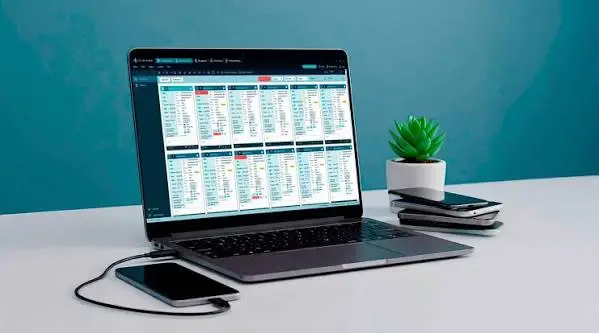
One of the most important phone settings tips is to keep your operating system updated. Software updates can include security improvements, bug fixes, performance changes, and new features.
How to check for updates
On iPhone:
- Open Settings.
- Tap General.
- Select Software Update.
- Install an available update or enable automatic updates.
Apple recommends keeping software updated to receive security updates and bug fixes.
On Android:
- Open Settings.
- Search for System Update or Software Update.
- Check for available updates.
- Follow the instructions on your screen.
Android menu names vary by manufacturer, so Samsung, Google Pixel, Motorola, and other phones may use different wording.
Tip: Install important updates when your phone is connected to reliable Wi-Fi and has sufficient battery or is connected to power.
2. Review App Permissions
Apps often request access to information or hardware such as your camera, microphone, contacts, photos, and location. You don’t necessarily need to allow every permission an app requests.
Google allows Android users to review and change permissions for individual apps, while iPhone users can manage access through Privacy & Security.
What to check
Review permissions for:
- Location
- Camera
- Microphone
- Contacts
- Photos and videos
- Calendar
- Files
- Physical activity
- Nearby devices
A simple rule
Ask yourself: Does this app actually need this permission to perform its main function?
For example, a navigation app may reasonably need location access, while a basic calculator generally does not.
On Android, you can go to Settings > Apps > [App] > Permissions.
On iPhone, open Settings > Privacy & Security and review the relevant category.
3. Limit Location Access
Location services are useful for maps, weather, ride-sharing, delivery apps, and emergency-related features. However, not every application needs continuous access to your location.
How to manage location settings
On iPhone, go to:
Settings > Privacy & Security > Location Services
Then select individual apps and choose an appropriate access level.
On Android, location permissions can be managed through the app’s permission settings.
A practical approach
For many apps, consider using an option similar to:
Allow only while using the app
rather than allowing continuous access when it isn’t necessary.
The exact choices depend on your phone and operating system version.
4. Turn On a Strong Screen Lock
A screen lock is one of the simplest ways to protect information stored on your phone.
Use a strong:
- PIN
- Password
- Fingerprint
- Face authentication method
Biometric unlocking can make everyday access convenient, while a strong PIN or password provides an important fallback.
Avoid easy combinations such as:
- 1234
- 0000
- Your birth year
- Repeated digits
- Easily guessed personal information
Android’s security settings include device-lock options, while iPhone provides Face ID or Touch ID and passcode settings.
5. Hide Sensitive Lock Screen Notifications
Your phone can display message previews and other information even when the device is locked. That can be convenient, but it may expose private information to anyone who can see your screen.
On iPhone
Go to:
Settings > Notifications
You can control how notifications appear and whether previews are shown.
Apple provides options such as showing previews Always, When Unlocked, or Never.
On Android
Open:
Settings > Notifications
Look for lock-screen notification settings and sensitive-content controls.
Google provides options for controlling what appears on the lock screen, although the exact menu can vary between Android devices.
Practical tip: If you regularly receive banking, work, or private messages, consider hiding their detailed content from the lock screen.
6. Reduce Unnecessary Notifications
Too many notifications can make your phone harder to use. Instead of disabling everything, identify the apps that send unnecessary alerts.
Try this:
- Open Settings.
- Go to Notifications.
- Review apps that frequently send alerts.
- Disable notifications you don’t need.
- Keep important calls, messages, security alerts, and other essential notifications enabled.
Both Android and iPhone provide controls for managing notifications by app.
Useful example
You may want notifications from your banking app but not every promotional alert from shopping or entertainment apps.
This creates a better balance between staying informed and reducing interruptions.
7. Use Do Not Disturb or Focus Mode
Do Not Disturb and Focus features can temporarily reduce interruptions.
You can use them for:
- Sleep
- Work
- Studying
- Meetings
- Driving
- Exercise
- Personal time
Instead of manually silencing your phone every time you need concentration, create a schedule or mode that automatically limits selected notifications.
On iPhone, Focus can control when notifications are delayed. Android devices offer Do Not Disturb and related notification controls.
8. Improve Battery Life With Display Settings
Your display can have a noticeable effect on battery consumption, particularly when the screen is bright or remains active for long periods.
Useful settings to review
- Reduce unnecessary screen brightness.
- Enable automatic or adaptive brightness if it works well for you.
- Reduce screen timeout or Auto-Lock duration.
- Use Battery Saver or Low Power Mode when needed.
- Consider Dark Mode if you prefer it and your device supports it.
Google specifically recommends settings such as reducing brightness, allowing the screen to turn off sooner, restricting high battery-use apps, using adaptive battery features, and enabling Battery Saver where appropriate.
Important limitation
Battery behavior differs by phone model, display technology, network conditions, apps, and usage habits. No single battery setting guarantees a specific number of extra hours.Phone Settings Tips can help you use your phone more efficiently. Phone Settings Tips are useful for improving privacy and security. You can follow Phone Settings Tips to manage notifications and sounds. Simple Phone Settings Tips can also help save battery life. These Phone Settings Tips make everyday phone use easier. Try these Phone Settings Tips to keep your device organized.
Phone Settings Tips can help you use your phone more efficiently. Phone Settings Tips are useful for improving privacy and security. You can follow Phone Settings Tips to manage notifications and sounds. Simple Phone Settings Tips can also help save battery life. These Phone Settings Tips make everyday phone use easier. Try these Phone Settings Tips to keep your device organized.
9. Check Which Apps Use the Most Battery
If your battery seems to drain unusually quickly, don’t immediately assume the battery itself is defective.
First check battery usage.
Look for apps that consume an unusually large share of your battery.
If an app you rarely use appears near the top, consider:
- Updating the app
- Limiting its background activity
- Adjusting permissions
- Removing the app if you don’t need it
Android provides battery-related controls and recommendations, although available options depend on the device.
10. Manage Background Activity Carefully
Some apps perform tasks in the background even when you aren’t actively using them. This can be useful for messaging, synchronization, navigation, and other services.
However, restricting background activity too aggressively can cause delayed notifications or interfere with features that rely on background processing.
Better approach
Don’t restrict every app automatically.
Instead, investigate apps that:
- Use excessive battery
- Consume significant mobile data
- You rarely use
- Don’t need real-time updates
Make changes gradually and observe whether important features continue working correctly.
11. Review Mobile Data Usage
If you have a limited cellular data plan, regularly check which apps are consuming mobile data.
Look for:
- Video streaming
- Social media
- Cloud synchronization
- Automatic downloads
- App updates
- Hotspot usage
You can restrict mobile data for apps that don’t need cellular access and allow them to work primarily over Wi-Fi.
The exact controls differ between iPhone and Android phones and may also depend on your carrier.
12. Use Wi-Fi and Bluetooth Wisely
Wi-Fi and Bluetooth are essential for many everyday activities, including wireless headphones, smartwatches, cars, home networks, and accessories.
But you should periodically review connected devices and saved networks.Phone Settings Tips can help you use your phone more efficiently. Phone Settings Tips are useful for improving privacy and security. You can follow Phone Settings Tips to manage notifications and sounds. Simple Phone Settings Tips can also help save battery life. These Phone Settings Tips make everyday phone use easier. Try these Phone Settings Tips to keep your device organized.
Good habits
- Remove Bluetooth devices you no longer use.
- Avoid connecting to unfamiliar networks.
- Use password-protected home Wi-Fi.
- Review hotspot settings before sharing your connection.
- Turn off connectivity features when you don’t need them if you prefer to minimize unnecessary connections.
Don’t disable Wi-Fi or Bluetooth simply because you heard they always drain significant battery. Actual impact depends on the device, connection quality, and how the features are being used.
13. Turn On Find-My-Device Features
A lost phone can contain valuable personal information, so location and device-recovery features are worth setting up before you need them.
Apple includes Find My settings, while Android provides device-finding capabilities through Google’s ecosystem. Android’s security settings also include device-finder controls.
Check these settings
- Device location
- Find My or Find Hub
- Account sign-in
- Remote device controls
- Screen lock
- Backup
Set these features up while your phone is in your possession. Waiting until the phone is already lost can make recovery much more difficult.
14. Review Privacy and Security Settings
Privacy settings deserve a regular check because apps and services can gain access to different types of information.
On Android, the Privacy Dashboard can show which apps have accessed certain permissions and when the access occurred on supported versions.
On iPhone, Privacy & Security provides controls for information such as location, camera, microphone, photos, and tracking. Apple also provides an App Privacy Report for reviewing certain app access and network activity.
Monthly privacy checklist
Review:
- Location permissions
- Camera permissions
- Microphone permissions
- Photo access
- Contacts access
- Tracking permissions
- Apps you no longer use
- Devices connected to your accounts
15. Control App Tracking
On iPhone, apps must request permission before tracking you across websites or apps owned by other companies for purposes covered by Apple’s tracking controls. You can review these requests under Settings > Privacy & Security > Tracking.
On Android, Google provides privacy and personalization controls through Android and Google account settings.
The goal isn’t necessarily to turn off every personalization feature. Instead, understand what you’re allowing and choose settings that match your preferences.
16. Clean Up Unused Apps
Unused apps take up storage and may continue to generate notifications or request permissions.
Review your app list every few months.
Remove apps you:
- Haven’t used for a long time
- No longer need
- Don’t recognize
- Installed temporarily
- No longer trust
On Android, supported versions can automatically pause activity or remove permissions for unused apps.
Before deleting an app, make sure important information is synchronized or backed up if you need it later.
17. Check Storage Before Your Phone Gets Full
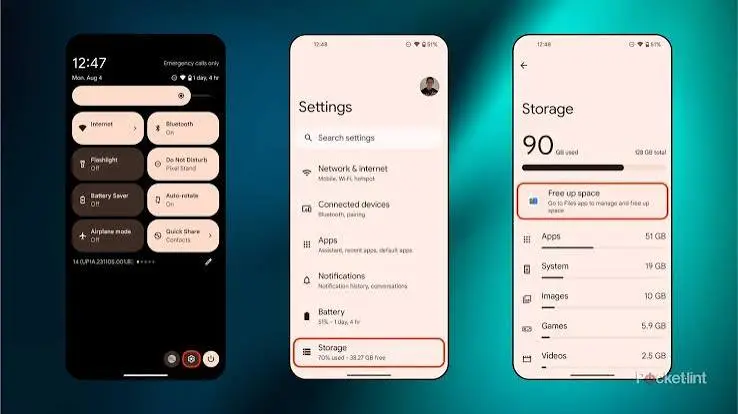
Low storage can make everyday phone management more difficult and may prevent you from taking photos, downloading files, or installing software updates.
Check your storage settings and identify large categories such as:
- Videos
- Photos
- Downloads
- Large apps
- Offline media
- Duplicate files
- Old documents
Don’t delete files simply because they are large. First determine whether you need them.
Cloud storage can help, but it is not a substitute for understanding what data you have and where it is stored.
18. Use Accessibility Settings
Accessibility settings aren’t only for people with disabilities. Many smartphone users can benefit from them.
Depending on your phone, useful features may include:
- Larger text
- Display zoom
- Screen magnification
- Captions
- Hearing-related controls
- Voice control
- Reduced motion
- High-contrast options
- Assistive touch controls
Apple lists accessibility settings covering vision, hearing, speech, and physical or motor needs within iPhone Settings.
Explore these options if you find small text, animations, or touch controls difficult to use.
19. Search Settings Instead of Scrolling
A simple but overlooked iPhone setting tip is to use the Settings search function.
Instead of opening multiple menus, search for terms such as:Phone Settings Tips can help you use your phone more efficiently. Phone Settings Tips are useful for improving privacy and security. You can follow Phone Settings Tips to manage notifications and sounds. Simple Phone Settings Tips can also help save battery life. These Phone Settings Tips make everyday phone use easier. Try these Phone Settings Tips to keep your device organized.
- Battery
- Notifications
- Location
- Wi-Fi
- Privacy
- Screen Time
- Keyboard
- Brightness
Apple specifically provides Settings search so users can quickly find settings without navigating through every section.
Android phones also commonly provide a settings search field, although the interface varies by manufacturer.
20. Don’t Change Settings You Don’t Understand
More customization doesn’t automatically mean a better phone experience.
Avoid changing advanced settings simply because a social media post says they will “speed up” your phone or dramatically improve battery life.
Be particularly careful with:
- Developer options
- Network configuration
- VPN settings
- Accessibility services
- App installation permissions
- Account synchronization
- Security controls
- Background-process restrictions
If a setting changes how important system functions work, research it first or use your manufacturer’s support documentation.
Quick Phone Settings Checklist
Use this checklist once every few months:
| Setting Area | What to Check | Main Benefit |
|---|---|---|
| Software | System updates | Security and bug fixes |
| Screen Lock | PIN, password, biometrics | Device protection |
| Permissions | Camera, microphone, location | Privacy control |
| Notifications | Unnecessary alerts | Fewer interruptions |
| Battery | Battery usage and saver | Better battery management |
| Storage | Large and unused files | More available space |
| Apps | Unused applications | Cleaner device |
| Location | App-by-app access | Better privacy control |
| Find Device | Recovery features | Help locating a lost phone |
| Accessibility | Text, display, and control options | Easier use |
Common Phone Settings Mistakes to Avoid
Turning off every notification
Disabling all notifications may cause you to miss important messages, account alerts, security notifications, or reminders. Manage notifications selectively instead.
Giving every app every permission
An app doesn’t automatically need access to your microphone, camera, contacts, and location. Review each permission based on what the app actually does.
Disabling software updates
Ignoring updates can leave your phone without important fixes and improvements. Check for updates regularly and use automatic updates where appropriate.
Using extreme battery-saving settings
Aggressive battery restrictions can interfere with background activity, notifications, synchronization, or other features. Google notes that Battery Saver can limit background activity and may cause some functions or apps to experience delays.
Following random “secret settings” videos
Some tips online apply only to specific phones or software versions. A setting available on one Samsung or Pixel model may not exist on an iPhone or another Android phone.
iPhone vs. Android: Where to Look for Important Settings
The underlying goals are similar, but the menu structure differs.
| Task | iPhone | Android |
|---|---|---|
| Software updates | Settings > General > Software Update | Settings > System/Software Update |
| App permissions | Settings > Privacy & Security | Settings > Apps > Permissions |
| Notifications | Settings > Notifications | Settings > Notifications |
| Battery | Settings > Battery | Settings > Battery |
| Screen lock | Face ID/Touch ID & Passcode | Security/Lock Screen |
| Location | Privacy & Security > Location Services | Location/Permission Manager |
| Device recovery | Find My | Find Hub/device-finder tools |
| Accessibility | Accessibility | Accessibility |
These paths can change with software updates, device manufacturers, and phone models. For Android, Google specifically notes that some instructions vary on customized versions of Android.
If you want to learn more about using Android devices effectively, read our Android Tips guide for practical tips on battery life, storage, security, notifications, and everyday smartphone use.
For Apple users, our iPhone Tips guide covers useful features, battery-saving settings, privacy, storage, photography, and shortcuts.
If you are comparing different devices before buying, check our Android Phone Comparison guide to compare performance, display, camera, battery, storage, and other important features.
For official information about Android features and security, visit Android’s official website.
For official information about iPhone features and software, visit Apple’s official iPhone page.
Frequently Asked Questions
What are the most important phone settings to change?
Start with your screen lock, software updates, app permissions, notifications, location access, battery settings, and device-finding features. These settings affect security, privacy, battery management, and everyday usability. You don’t need to change everything at once; review the most important areas first and adjust them according to how you use your phone.
How can I improve my phone battery life with settings?
Start by checking which apps consume the most battery. Then consider reducing unnecessary screen brightness, shortening screen timeout, using adaptive battery features, and enabling Battery Saver or Low Power Mode when appropriate. Battery results vary by phone, software, network conditions, display, and personal usage, so avoid expecting one setting to solve every battery problem.
How do I improve phone privacy?
Review app permissions for location, camera, microphone, contacts, photos, and other sensitive information. Remove permissions that apps don’t reasonably need, review tracking controls, and check privacy dashboards or reports available on your device. Both Android and iPhone provide built-in privacy controls that allow you to manage access instead of relying entirely on third-party apps.
Should I turn off notifications for most apps?
You don’t need to disable notifications from every app. Instead, keep alerts that provide useful information and reduce promotional or unnecessary notifications. You can usually manage notifications individually by app. On iPhone and Android, you can also control how notifications appear on the lock screen and whether sensitive information is visible.
How often should I review my phone settings?
A quick review every few months is practical, with additional checks after major operating-system updates or when you install many new apps. Pay particular attention to permissions, notifications, storage, battery usage, software updates, and security settings. If you notice unusual battery drain, unexpected notifications, or unfamiliar app activity, review the relevant settings sooner.
Conclusion
Phone Settings Tips are useful because they help you control the way your device works instead of relying on its default configuration. Start with the essentials: keep your software updated, use a strong screen lock, review app permissions, manage notifications, check battery usage, protect your location and personal information, and enable device-finding features.
You don’t need to change every available option. Phone Settings Tips can help you use your phone more efficiently. Phone Settings Tips are useful for improving privacy and security. You can follow Phone Settings Tips to manage notifications and sounds. Simple Phone Settings Tips can also help save battery life. These Phone Settings Tips make everyday phone use easier. Try these Phone Settings Tips to keep your device organized.
The best approach is to make purposeful adjustments based on your own needs. Open your phone’s Settings app today and review these five areas first: Software Update, Privacy/Permissions, Notifications, Battery, and Security. Those settings give you a strong starting point for improving your smartphone experience.