
Introduction
Mobile Phone Tips can help you get more from your smartphone without buying a new device. Whether you use an iPhone or Android phone, a few simple changes can improve battery life, speed, storage, privacy, security, and everyday convenience.
Your phone is likely used for communication, banking, navigation, photos, entertainment, work, shopping, and more. That makes basic smartphone maintenance important. This guide covers practical mobile phone tips for U.S. users, including ways to save battery, free up storage, protect personal information, improve performance, avoid scams, and make your phone easier to use.
1. Keep Your Phone’s Software Updated
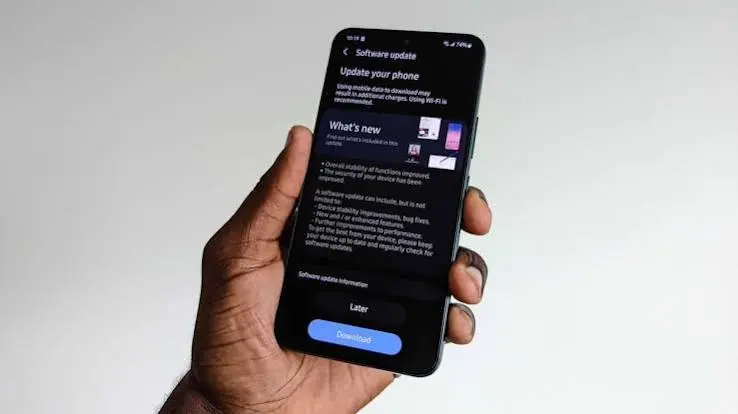
One of the simplest mobile phone tips is to install operating system and app updates promptly. Updates can include new features, bug fixes, performance improvements, and security protections.
The Federal Trade Commission recommends keeping mobile operating systems and apps updated because software updates can contain important security patches.
How to update your phone
- Open Settings.
- Look for Software Update, System Update, or a similar option.
- Install available updates when convenient.
- Open your app store and check for app updates.
- Enable automatic updates when appropriate.
Avoid delaying important security updates simply because your phone appears to be working normally.
2. Use a Strong Screen Lock
A smartphone can contain private conversations, photographs, emails, saved passwords, financial information, and account access. A strong screen lock adds an important layer of protection if your phone is lost or stolen.
The FTC recommends using a phone lock and a passcode of at least six digits.
Use a strong PIN or passcode rather than an easy combination such as your birthday. If your device supports biometric authentication, such as Face ID or fingerprint recognition, you can use it for convenient unlocking while retaining your passcode as a backup.
3. Turn on Automatic Backups
Backing up your phone can save you from losing important information after a damaged, lost, or stolen device.
Depending on your phone, backups may include contacts, photos, videos, app information, settings, messages, or other data.
A simple backup routine
- Turn on iCloud backup if you use an iPhone.
- Use Google backup features on compatible Android devices.
- Check that important photos and videos are syncing.
- Occasionally verify that your backup is working.
- Keep especially important documents in more than one secure location.
A backup is most useful when you set it up before something goes wrong.
4. Improve Battery Life
Battery life depends on your phone model, battery condition, display, apps, network connection, and how you use the device. However, several settings can reduce unnecessary battery consumption.
Google recommends options such as reducing screen brightness, shortening screen timeout, restricting high-battery-use apps, and using Battery Saver on supported Android devices.
Try these battery-saving changes
- Reduce screen brightness when practical.
- Use automatic brightness if it works well for you.
- Shorten the screen timeout.
- Turn on Battery Saver or Low Power Mode when necessary.
- Review apps with unusually high battery usage.
- Turn off Bluetooth or location access when you do not need them.
- Avoid unnecessary GPS, video streaming, and graphics-heavy gaming when your battery is low.
These changes can be particularly useful when you’re traveling or away from a charger.
5. Keep Your Phone Cool
Heat is an important consideration for smartphone batteries. Google advises avoiding situations that cause phones to overheat because high temperatures can increase battery drain and may damage the battery.
Avoid leaving your phone in a hot vehicle or exposing it to excessive heat for extended periods.
If your phone becomes unusually hot, stop demanding activities such as gaming, video recording, navigation, or intensive downloads and allow it to cool naturally.
6. Use Your Phone’s Built-In Battery Features
Modern smartphones often provide battery-health or charging-management features.
For example, supported iPhones include Optimized Battery Charging, which can reduce the amount of time the phone spends fully charged by pausing charging around 80% and completing charging closer to your expected unplugging time.
Android devices can also provide adaptive battery and Battery Saver features, although the exact options vary by manufacturer and Android version.
Check your phone’s battery settings instead of relying on generic battery-saving apps.
7. Free Up Storage Space
A phone with very little available storage can become difficult to manage. Large videos, duplicate photos, downloaded files, unused apps, podcasts, and cached content can consume space.
How to free storage
- Open Settings and find Storage.
- Check which categories use the most space.
- Delete apps you no longer use.
- Remove unnecessary downloads.
- Review large videos and duplicate photographs.
- Delete old files from messaging apps where appropriate.
- Move important photos or files to a trusted cloud service or computer.
Do not delete files simply because they look unfamiliar. Check what they are before removing them.
8. Remove Apps You No Longer Use
Unused apps do more than occupy storage. Some apps may also receive notifications, request permissions, or perform background activity.
Review your installed apps every few months.
Ask yourself:
- Do I still use this app?
- Do I trust its developer?
- Does it need the permissions I granted?
- Is there a reason to keep it installed?
If the answer is no, uninstalling it can simplify your phone.
9. Review App Permissions
App permissions determine what information or phone functions an application can access. Depending on the app and operating system, permissions may include location, camera, microphone, contacts, photos, and other information.
The FTC recommends checking what information an app wants access to and considering whether that access is actually necessary.
A practical permission check
Go to your phone’s privacy or app-permission settings and review sensitive permissions.
For example, a navigation app may reasonably need location access, while a simple calculator may not need access to your contacts.
Permission names and controls vary between iPhone and Android devices, so use your manufacturer’s current instructions when a setting is difficult to locate.
10. Be Careful With Text Messages and Links
Unexpected texts can contain phishing links designed to steal passwords, payment information, or other personal details.
The FTC advises consumers not to click unexpected links in messages and instead contact the organization through a website or phone number known to be legitimate.
Be particularly cautious when a message:
- Claims your bank account has a problem.
- Says you must pay immediately.
- Offers an unexpected refund or prize.
- Creates a sense of urgency.
- Asks for a password or verification code.
- Directs you to an unfamiliar website.
When in doubt, open the company’s official app or manually type its known website address instead of following the message link.
11. Enable Multi-Factor Authentication
Multi-factor authentication, often called MFA or two-factor authentication, adds another verification step when you sign in.
For example, a service may require your password plus a verification code or another authentication method.Mobile phone tips can help you use your smartphone more effectively every day.
With useful mobile phone tips, you can improve battery life and phone performance.
These mobile phone tips can also help you manage apps and storage easily.
Learning mobile phone tips makes everyday smartphone tasks faster and simpler.
Follow these mobile phone tips to keep your device secure and organized.
More mobile phone tips can help you discover useful features and settings.
The FTC explains that MFA can make it harder for someone to access an account even if they obtain your username and password.
Enable MFA for important accounts, especially email, financial services, cloud storage, and social media accounts that support it.
12. Use a Password Manager
If you use many online accounts, remembering a unique password for every service can be difficult.
A reputable password manager can help you generate and store strong, unique passwords. This reduces the temptation to reuse the same password across multiple websites.
Your password manager itself should be protected with a strong master credential and, where available, additional authentication.
13. Turn on Find My Device Features
Your phone’s built-in location and recovery tools can be extremely useful if the device is lost.
Apple and Android devices provide features that can help users locate, lock, or otherwise manage a missing phone. The FTC recommends enabling these types of tools in advance.
Set them up before you need them. A recovery feature that has not been enabled cannot help much after your phone disappears.
14. Clean Up Notifications
Too many notifications can make your phone distracting and difficult to manage.
Review notification settings and disable alerts that are not useful.
Keep important notifications enabled for things such as:
- Calls and messages
- Calendar events
- Security alerts
- Financial account notifications
- Navigation
- Other services you genuinely need
Reducing unnecessary notifications can make your phone feel calmer and easier to use.
15. Use Wi-Fi Carefully
Wi-Fi can reduce mobile data usage, but not every network deserves the same level of trust.
At home, protect your wireless network with a strong password and keep your router’s software and security settings current.
When using public Wi-Fi, avoid entering sensitive information into unfamiliar websites or following unexpected login prompts. Make sure you’re connecting to the network you actually intend to use.Mobile phone tips can help you use your smartphone more effectively every day.
With useful mobile phone tips, you can improve battery life and phone performance.
These mobile phone tips can also help you manage apps and storage easily.
Learning mobile phone tips makes everyday smartphone tasks faster and simpler.
Follow these mobile phone tips to keep your device secure and organized.
More mobile phone tips can help you discover useful features and settings.
16. Keep Your Camera and Photos Organized
Smartphones can quickly accumulate thousands of photographs and videos.
A simple organization system can save time:
- Delete obvious duplicates.
- Remove blurry images.
- Save important photographs to a backup service.
- Create albums for trips, events, or projects.
- Review large videos periodically.
Before deleting anything, confirm that important photographs have been backed up successfully.
17. Restart Your Phone When Something Seems Wrong
A simple restart can resolve some temporary software problems.
If an app freezes, the interface becomes unusually slow, or a temporary system issue occurs, restarting the phone is a sensible first troubleshooting step.
Google’s Android guidance also recommends restarting a device when addressing persistent battery-related problems.
If problems continue after restarting and updating the phone, check the manufacturer’s support resources.
18. Keep Your Home Screen Simple
Your home screen should help you reach the apps you actually use.
Consider keeping only frequently used apps on the first screen and placing less-used applications into folders or the app library.
Useful categories might include:
- Work
- Finance
- Travel
- Shopping
- Photography
- Social
- Utilities
A simpler home screen can make common tasks faster without requiring another app.
19. Use Dark Mode When You Prefer It
Dark mode changes the appearance of supported apps and system interfaces.
It can be easier on the eyes for some people in darker environments, although the practical battery benefit depends on the phone’s display technology and how the device is configured.
Treat dark mode as a preference rather than a guaranteed battery-saving solution.
20. Manage Location Sharing
Location information can be useful for navigation, weather, transportation, delivery services, and other apps. However, not every application needs continuous access to your location.
Review location permissions periodically and choose the least access that still lets an app perform its intended function.
The FTC recommends reviewing location settings and considering whether an app actually needs to know where you are.
21. Avoid Suspicious “Phone Cleaner” Apps
You may see apps promising to dramatically speed up your phone, eliminate every threat, or magically extend battery life.
Be skeptical of exaggerated claims.
Before installing a cleaning or security app, check the developer, reviews, permissions, privacy practices, and whether your phone already includes the feature.
Built-in storage, battery, security, and device-management tools are often a better starting point than installing multiple unnecessary utilities.
22. Protect Your Phone Physically
Digital security is only part of smartphone care.
Use a suitable case if you are concerned about drops and consider a screen protector if it fits your usage.
Also avoid exposing the phone to unnecessary moisture, extreme temperatures, dust, or physical pressure.
If your phone becomes damaged, stop using it if there are signs of serious battery or physical damage and consult the manufacturer’s support or a qualified repair provider.
23. Watch for Signs of a Security Problem
Unexpected behavior does not automatically mean your phone has been hacked. However, unusual changes deserve attention.
Potential warning signs can include:Mobile phone tips can help you use your smartphone more effectively every day.
With useful mobile phone tips, you can improve battery life and phone performance.
These mobile phone tips can also help you manage apps and storage easily.
Learning mobile phone tips makes everyday smartphone tasks faster and simpler.
Follow these mobile phone tips to keep your device secure and organized.
More mobile phone tips can help you discover useful features and settings.
- Unexpected account activity.
- Apps you do not remember installing.
- Unusual battery or data usage.
- Repeated suspicious pop-ups.
- Password-reset notifications you did not request.
- Someone knowing private information they should not know.
The FTC notes that unusual battery drain, increased data use, overheating, or unexpected device behavior can sometimes appear with unwanted monitoring software, although these symptoms can have other explanations as well.
If you suspect an account has been compromised, change the affected password and enable MFA where available.
24. Don’t Ignore Your Mobile Data Usage
If your cellular plan has a data limit, check which apps consume the most mobile data.
Video streaming, cloud synchronization, social media, video calls, navigation, and automatic downloads can use significant amounts of data depending on how they are configured.
Use your phone’s built-in cellular or mobile-data settings to identify high-usage apps and adjust background-data settings when appropriate.
25. Create a Monthly Smartphone Maintenance Routine
You do not need to spend hours maintaining your phone. A short monthly check can cover most important areas.
Monthly mobile phone checklist
- Install available system and security updates.
- Update important apps.
- Check battery usage.
- Review storage.
- Delete unused apps.
- Review sensitive app permissions.
- Confirm important backups.
- Check account-security alerts.
- Review unnecessary notifications.
- Make sure Find My Device or the equivalent recovery feature is enabled.
This simple routine can help you catch problems before they become bigger issues.
Common Mobile Phone Mistakes to Avoid
Some smartphone problems come from everyday habits rather than defective hardware.
Avoid these common mistakes:
Ignoring software updates: Delayed updates can leave security and software issues unresolved.
Using the same password everywhere: One compromised password can put several accounts at risk.
Clicking unexpected links: A message that looks official can still be fraudulent. Verify through a trusted channel first.
Keeping every app installed: Unused apps increase clutter and may continue requesting permissions or sending notifications.
Ignoring backups: A backup is valuable only if it exists before your phone is lost or damaged.
Overheating the phone: Excessive heat can negatively affect battery performance and longevity.
Installing unnecessary “optimization” apps: More apps do not automatically mean better performance.
iPhone vs. Android: Which Mobile Phone Tips Apply?
Most of the fundamental advice applies to both iPhone and Android devices, but the exact menus and available features differ.
| Area | iPhone | Android |
|---|---|---|
| Software updates | Settings > General > Software Update | Settings > System or manufacturer-specific update menu |
| Backup | iCloud and other supported methods | Google backup and manufacturer-supported options |
| Battery controls | Battery settings and Low Power Mode | Battery Saver and Adaptive Battery on supported devices |
| Device recovery | Find My | Find My Device on supported Android devices |
| App permissions | Privacy & Security settings | Privacy and permission settings |
| App installation | App Store | Google Play and manufacturer-supported stores |
Menu names can change with operating system versions and phone manufacturers. If you cannot find a setting, check the official support documentation for your exact device.Mobile phone tips can help you use your smartphone more effectively every day.
With useful mobile phone tips, you can improve battery life and phone performance.
These mobile phone tips can also help you manage apps and storage easily.
Learning mobile phone tips makes everyday smartphone tasks faster and simpler.
Follow these mobile phone tips to keep your device secure and organized.
More mobile phone tips can help you discover useful features and settings.
If you want to learn more about using Android devices effectively, read our Android Tips guide for practical tips on battery life, storage, security, notifications, and everyday smartphone use.
For Apple users, our iPhone Tips guide covers useful features, battery-saving settings, privacy, storage, photography, and shortcuts.
If you are comparing different devices before buying, check our Android Phone Comparison guide to compare performance, display, camera, battery, storage, and other important features.
For official information about Android features and security, visit Android’s official website.
For official information about iPhone features and software, visit Apple’s official iPhone page.
Frequently Asked Questions
What are the most important mobile phone tips?
The most important mobile phone tips include keeping your software updated, using a strong screen lock, backing up important data, managing app permissions, enabling multi-factor authentication, avoiding suspicious links, protecting battery health, and keeping enough storage available. These basic habits improve security, reliability, privacy, and everyday smartphone performance.
How can I make my phone battery last longer?
Reduce unnecessary screen brightness, shorten screen timeout, limit apps that consume excessive battery, use Battery Saver or Low Power Mode when needed, and reduce demanding activities such as prolonged GPS navigation or gaming when your battery is low. Keeping the phone away from excessive heat can also help protect battery performance.
How often should I update my smartphone?
Install operating system and app updates when they become available, particularly security updates. Automatic updates can reduce the chance of forgetting. Updates may contain important security protections as well as bug fixes and new features, so delaying them unnecessarily can leave known issues unresolved.
How can I protect my phone from hackers and scams?
Start with a strong screen lock, current software, regular backups, and multi-factor authentication for important accounts. Be cautious with unexpected texts, emails, links, and attachments. If a message asks you to provide sensitive information or make an urgent payment, verify it through the organization’s official app or website rather than using the provided link.
Why is my phone running slowly?
Slow performance can have several causes, including limited storage, outdated software, problematic apps, excessive background activity, or hardware limitations. Start by restarting the phone, installing available updates, checking storage, and reviewing battery or app usage. If the problem continues, use your phone manufacturer’s troubleshooting and support resources before considering a factory reset.
Final Thoughts
mobile phone tips Good smartphone habits do not require complicated tools or technical knowledge. The most useful mobile phone tips are often simple: update your software, protect your accounts, back up important information, manage permissions, control unnecessary battery and data usage, and keep your device physically protected.
Start with the five highest-priority actions today: update your phone, enable a strong screen lock, verify your backups, turn on multi-factor authentication for important accounts, and review suspicious apps or permissions. Then use the monthly maintenance checklist to keep your phone secure, organized, and reliable.