
Introdduction
Android Tricks can help you save time, organize your phone, protect personal information, share files faster, and get more from features you may not use every day. Many useful Android tools are already built into the operating system, although the exact menus can vary between Google Pixel, Samsung Galaxy, Motorola, OnePlus, Xiaomi, and other Android phones.
This guide covers practical Android tricks that are useful for everyday users in the United States. You’ll learn how to customize Quick Settings, take scrolling screenshots, record your screen, use one-handed mode, share files with Quick Share, protect sensitive apps with Private Space, and make your phone easier to use.
Because Android manufacturers customize their software, some features may only be available on certain Android versions or devices. When a trick depends on Android 12, Android 13, Android 15, or specific hardware, that limitation is noted.
1. Customize Quick Settings for Faster Access
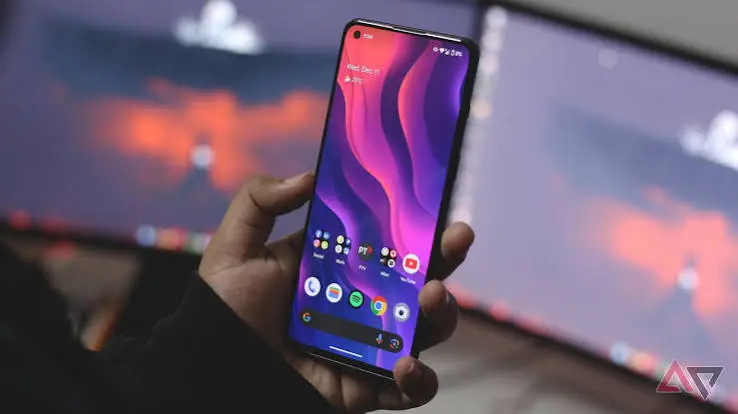
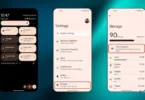
One of the easiest Android tricks is customizing Quick Settings. Instead of opening Settings every time you need Wi-Fi, Bluetooth, screen recording, hotspot, or another frequently used control, you can place the feature where it is easy to reach.
Android lets you swipe down from the top of the screen to access Quick Settings. Swiping down again reveals more controls. You can also add, remove, or rearrange available tiles.
How to customize Quick Settings
- Swipe down from the top of your screen twice.
- Tap Edit or the pencil icon, depending on your phone.
- Find the setting you want.
- Drag it into your active Quick Settings area.
- Move frequently used controls toward the front.
A useful setup might include Wi-Fi, Bluetooth, mobile data, flashlight, screen recording, hotspot, and airplane mode.
Tip: Keep your most-used controls near the beginning instead of filling the panel with settings you rarely use.
2. Take Scrolling Screenshots
A normal screenshot captures only what is currently visible. A scrolling screenshot can capture a longer webpage, conversation, document, or other supported content.
On supported devices running Android 12 or later, you can take a screenshot and select Capture more when the screen supports scrolling.
How to take a scrolling screenshot
- Open the webpage or content you want to capture.
- Press Power + Volume Down together.
- Select Capture more.
- Adjust the area you want to include.
- Save or share the screenshot.
This is particularly useful when you need to send a long conversation, save instructions, or capture an entire webpage without taking multiple screenshots.
Limitation: Not every app or screen supports scrolling screenshots.
3. Record Your Android Screen Without Installing an App
Many Android phones include a built-in screen recorder, so you may not need a third-party application.
On supported Android devices, open Quick Settings and select Screen record. You can choose available recording options, including whether audio or screen touches are shown.
Steps to record your screen
- Swipe down twice from the top.
- Find Screen record.
- If necessary, tap Edit and add it to Quick Settings.
- Choose your recording preferences.
- Tap Start.
- When finished, use the screen recorder notification to stop recording.
Screen recording is useful for creating tutorials, documenting a technical problem, demonstrating an app, or showing someone how to change a setting.
Important: Recording availability and controls can differ by manufacturer and Android version.
4. Use One-Handed Mode
Large phone screens are excellent for watching videos and browsing websites, but reaching the top of the screen with one hand can be uncomfortable.Android tricks Android tricks Android tricks Android tricks Android tricks Android tricks Android tricks
Android tricks Android tricks Android tricks Android tricks Android tricks Android tricks Android tricks
Android tricks Android tricks Android tricks Android tricks Android tricks Android tricks Android tricks
Android tricks Android tricks Android tricks Android tricks Android tricks Android tricks Android tricks
Android tricks Android tricks Android tricks Android tricks Android tricks Android tricks Android tricks
Android tricks Android tricks Android tricks Android tricks Android tricks Android tricks Android tricks
Android’s one-handed mode reduces the reachable area of the display so you can access content more easily with one hand. Google documents the feature for supported devices running Android 12 and later.
How to turn it on
- Open Settings.
- Search for One-handed mode.
- Turn on Use One-handed mode.
- Follow your phone’s instructions for activating it.
This can be particularly convenient when you’re carrying something in your other hand or using a large-screen phone.
5. Share Files Quickly With Quick Share
Quick Share is one of the most useful Android tricks for moving photos, videos, documents, and other files between nearby compatible devices.
You can access Quick Share through the Android share menu, Quick Settings, or Settings. Google says Quick Share is available on Android 6 and newer devices, as well as Chromebooks and selected Windows PCs through the Quick Share app.
How to use Quick Share
- Open the photo, video, document, or webpage you want to share.
- Tap Share.
- Select Quick Share.
- Choose the nearby device.
- Ask the recipient to accept the transfer if required.
Quick Share also provides visibility controls such as Your devices, Contacts, and Everyone for 10 minutes on supported devices.
Privacy tip: Use the narrowest visibility option that fits your needs instead of leaving your device discoverable to everyone.
6. Transfer Files Between Android and Windows
If you use an Android phone with a Windows PC, Quick Share can make transferring files much easier.
Google’s Quick Share for Windows supports sharing images, videos, and documents between compatible nearby Android and Windows devices. Transfers are encrypted, and the recipient must approve incoming files.
For a typical transfer:
- Install Quick Share on the Windows computer.
- Open the application.
- Set your device visibility.
- Select or drag the file into Quick Share.
- Select your Android phone.
- Accept the transfer on the receiving device.
This can eliminate the need to email files to yourself or repeatedly connect a USB cable.
7. Use Private Space for Sensitive Apps
If your phone supports Private Space, it can provide a separate area for apps you don’t want easily visible in your main app list.
Google describes Private Space as a separate space for hiding and organizing sensitive apps. Supported devices can also use a separate lock and hide the Private Space container when it is locked. The feature requires Android 15 or later and supporting device configurations.
How to find Private Space
- Open Settings.
- Go to Security & privacy.
- Select Private space.
- Follow the setup instructions.
- Choose an appropriate lock method.
Private Space can be useful for separating personal apps from the apps you regularly use in front of other people.
Important: Private Space is not available on every Android device, and managed or restricted devices may not support it.
8. Make Your Phone More Secure With Theft Protection
Android includes several theft-protection features designed to make unauthorized access more difficult.
Depending on your Android version and device, these can include features such as Failed Authentication Lock, protection for sensitive settings, and Private Space. Some of these features require Android 15 or newer.
A strong screen lock is still one of the most important basic protections.
Google recommends using a strong PIN with six or more digits or a sufficiently complex pattern.
Simple security checklist
- Use a strong screen lock.
- Keep Android and important apps updated.
- Review app permissions.
- Avoid installing apps from questionable sources.
- Use device-finding features where available.
- Keep sensitive notifications from appearing unnecessarily on the lock screen.
9. Turn Frequently Used Settings Into Shortcuts
If you regularly change a particular setting, use Android’s Settings search instead of scrolling through menus.
Open Settings and type a keyword such as:
- Battery
- Bluetooth
- NFC
- Hotspot
- Screen timeout
- Private Space
- App permissions
- Accessibility
This is often faster than remembering exactly where a manufacturer placed a particular option.
Android trick: If you don’t know where a setting is located, search for its name before browsing through multiple menus.
10. Use Screenshot Shortcuts for Everyday Tasks
Screenshots are useful for much more than saving funny posts.
You can use them to:
- Save a confirmation number.
- Capture a product detail.
- Save directions or instructions.
- Document an error message.
- Share a specific part of a conversation.
- Keep a temporary record of information.
On many Android phones, pressing Power + Volume Down captures the screen. Google notes that the exact method can vary by device.
After taking a screenshot, use the available editing and sharing controls to crop or mark important information before sending it.
11. Use Screen Recording for Troubleshooting
When someone asks, “What exactly happened on your phone?”, explaining the problem can take several messages.
A screen recording can demonstrate the problem much more clearly.
For example, if an app repeatedly crashes after you tap a particular option, record the sequence and send the video to technical support or someone helping you.
This is also useful for:
- App tutorials
- Gaming demonstrations
- Software troubleshooting
- Teaching family members
- Creating short how-to videos
Remember that some apps or content may restrict recording, and audio behavior can vary.
12. Share Content With Nearby Devices
Quick Share isn’t limited to photos. Depending on the device and supported content, you can share files, links, videos, and other information.
Google also documents newer ways to initiate sharing by bringing compatible Android phones close together, although device support can vary.
Before sharing something sensitive, check the recipient and file carefully. Convenience should not replace basic privacy awareness.
13. Keep Your Quick Settings Clean
Adding every available shortcut can make Quick Settings harder to use.
Instead, keep only controls you frequently access. A practical arrangement might include:
- Wi-Fi
- Bluetooth
- Mobile data
- Flashlight
- Screen record
- Hotspot
- Airplane mode
- Battery-related controls
Your ideal arrangement depends on how you use your phone.
The goal is simple: make frequently used controls faster to reach, not create another crowded menu.
14. Use Split Screen When Your Device Supports It
Split screen allows compatible apps to appear together so you can multitask.
For example, you might use a browser on one side while taking notes on the other. On supported larger-screen devices, Android can provide additional multitasking options. Google notes that split-screen behavior varies by device and that some apps do not support it.
Practical examples
- Chrome + Google Keep
- Calculator + browser
- Messages + Maps
- Files + Google Drive
If split screen isn’t available for an app, the limitation may come from the app or your phone’s software rather than something you configured incorrectly.
15. Drag and Drop Files Between Compatible Apps
On supported devices and apps, Android can make file management easier through drag-and-drop.
For example, Google’s Files by Google documentation describes moving or copying files between Files and compatible apps such as Google Drive and Google Photos.
This can be useful when organizing documents, uploading images, or moving files between folders.
16. Use QR Scanning Without Installing Another App
Many Android phones can scan QR codes through the camera or Quick Settings.
If your phone supports QR scanning, simply point the camera at the code and follow the displayed prompt. Google also documents QR scanning through Quick Settings on supported devices.
Always check the destination before opening a QR code link, particularly when the code comes from an unknown source.
17. Use Your Phone’s Search Instead of Hunting Through Apps
If your Android launcher supports app search, use it when you can’t remember where an app is.
Instead of swiping through multiple home-screen pages, search for the app by name.
This is especially helpful when your phone contains dozens or hundreds of installed apps.
You can also use Settings search for system options, making it easier to find features without knowing the exact menu path.
18. Review App Permissions Regularly
Privacy is an important part of using Android effectively.
An app may request access to information such as your location, camera, microphone, contacts, photos, or files. Not every permission request is equally necessary for every app.
Review permissions periodically and remove access that an app no longer needs.
For example, a basic calculator generally has little reason to access your contacts or microphone.
The exact permission controls vary by Android version and manufacturer, so check your phone’s Settings > Apps and privacy-related menus.
19. Avoid Installing Apps Just for Features Android Already Provides
One common Android mistake is installing a separate application for something your phone can already do.
Before downloading an app for:
- Screen recording
- QR scanning
- File sharing
- Screenshot capture
- Basic flashlight functions
- Simple file management
check whether the feature is already built into your device.
Built-in tools can reduce app clutter and may also reduce the number of third-party permissions you have to manage.
20. Keep Android Updated
Software updates can include security improvements, bug fixes, feature changes, and compatibility improvements.
Check Settings > System > Software update or use your manufacturer’s equivalent menu.
The exact update schedule depends on the device manufacturer, model, region, carrier, and software-support policy.
Keeping your phone updated is one of the simplest maintenance habits you can develop.
Android Tricks: What Works on Different Devices?
Not every Android trick works exactly the same way on every phone. Android manufacturers often add their own interfaces and features.
| Feature | Availability |
|---|---|
| Quick Settings customization | Common on modern Android phones |
| Scrolling screenshots | Supported on Android 12+ on most compatible screens |
| Built-in screen recording | Available on supported modern Android devices |
| One-handed mode | Supported on compatible Android 12+ devices |
| Quick Share | Android 6+ and compatible devices |
| Private Space | Android 15+ on supported devices |
| Split screen | Device and app dependent |
The table is a general guide rather than a guarantee. Samsung One UI, Google Pixel software, Motorola’s interface, OnePlus software, Xiaomi’s software, and other Android implementations can place features in different menus.
Common Android Mistakes to Avoid
Even useful Android tricks can cause problems if used carelessly.
Installing too many cleaner apps
Many phones already provide storage-management and battery-management tools. Installing multiple “cleaner” applications can add unnecessary notifications, permissions, and background activity.
Leaving sharing visibility too broad
Quick Share provides visibility controls. If you only need to share with your contacts or your own devices, use those options instead of leaving broader visibility enabled unnecessarily.
Ignoring device-specific instructions
A tutorial made for a Pixel phone may not match a Samsung Galaxy phone. Look for instructions specific to your Android version and manufacturer when a menu doesn’t appear.
Using outdated tutorials
Android changes over time. A tutorial from several years ago may show buttons or settings that have moved or been renamed.
Assuming every feature is universal
Android is an operating system used across many manufacturers. Hardware capabilities, software interfaces, and regional availability can differ.
How to Get More From These Android Tricks
You don’t need to change dozens of settings at once. Start with the features that solve a real problem.
Try this simple setup:
- Customize Quick Settings.
- Learn the screenshot shortcut.
- Add Screen Record if your phone supports it.
- Set up Quick Share.
- Review app permissions.
- Check whether Private Space is available.
- Enable useful security protections.
- Learn your phone’s multitasking options.
- Keep software updated.
- Remove apps you no longer need.
The best Android setup is not necessarily the one with the most features. It is the one that makes common tasks easier while keeping your information protected.
If you want to learn more about using Android devices effectively, read our Android Tips guide for practical tips on battery life, storage, security, notifications, and everyday smartphone use.
For Apple users, our iPhone Tips guide covers useful features, battery-saving settings, privacy, storage, photography, and shortcuts.
If you are comparing different devices before buying, check our Android Phone Comparison guide to compare performance, display, camera, battery, storage, and other important features.
For official information about Android features and security, visit Android’s official website.
For official information about iPhone features and software, visit Apple’s official iPhone page.
Frequently Asked Questions About Android Tricks
What are the most useful Android tricks?
Some of the most practical Android tricks include customizing Quick Settings, taking scrolling screenshots, using built-in screen recording, enabling one-handed mode, sharing files through Quick Share, reviewing app permissions, and using Private Space on supported Android 15 devices. The exact availability depends on your phone model and Android version.
How can I make my Android phone faster to use?
Start by customizing Quick Settings and learning common shortcuts such as Power + Volume Down for screenshots. Use Settings search instead of manually browsing menus, remove apps you no longer need, and keep your software updated. These simple habits can reduce the time you spend searching through menus and repeatedly performing basic tasks.
Does every Android phone have the same features?
No. Android is used by many manufacturers, and companies can customize the interface and available features. Android version, hardware, manufacturer software, and sometimes region can affect availability. If a trick doesn’t work, search your phone’s Settings or check the manufacturer’s support documentation for model-specific instructions.
Is Quick Share safe for sending files?
Quick Share includes safeguards such as recipient approval and encrypted file transfers. Its visibility settings also let you control who can discover your device. However, you should still confirm the recipient before accepting or sending a file. Google recommends visibility choices such as Your devices, Contacts, or Everyone for 10 minutes depending on your situation.
What is Private Space on Android?
Private Space is a separate area on supported Android devices that can be used to hide and organize sensitive apps. It can have a separate lock and can be configured to hide when locked. Google states that Private Space requires Android 15 or later and compatible device configurations, so it isn’t available on every Android phone.
Conclusion
Android Tricks are most useful when they solve everyday problems rather than simply adding more features to your phone. Start with practical tools such as Quick Settings, scrolling screenshots, screen recording, one-handed mode, Quick Share, app-permission controls, and Private Space where supported.
Remember that Android features vary between devices, so always consider your phone model and Android version before following a tutorial.
Your next step: open your Android phone’s Settings and Quick Settings today, find three features you rarely use, and learn how they can simplify your daily routine.