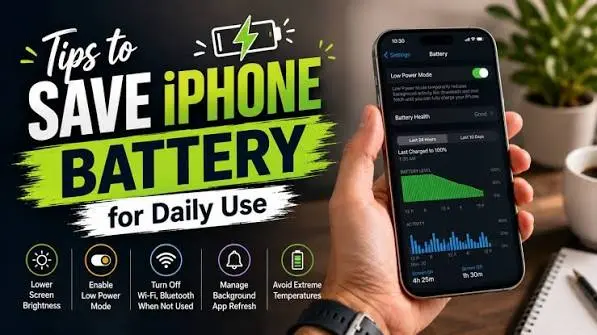

Battery Saving Tips can help you get more usable time from your iPhone, reduce unnecessary battery drain, and maintain battery health over the long term. Whether your battery drops quickly during the day or you simply want your iPhone to last longer between charges, a few practical settings and everyday habits can make a noticeable difference.
This guide covers the most useful battery-saving methods for iPhone users in the USA, including iPhone tricks, Low Power Mode, screen settings, background activity, charging habits, network settings, and battery-health checks.
What Are Battery Saving Tips?
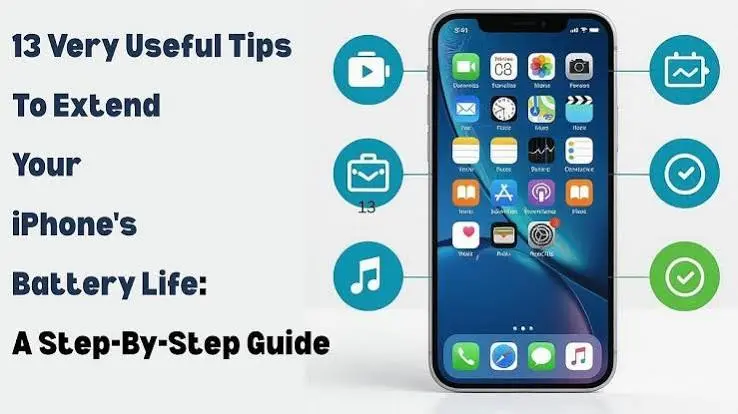
Battery saving tips are practical changes to your device settings and usage habits that reduce unnecessary power consumption. On an iPhone, the biggest areas to review are the display, apps running in the background, wireless connections, location services, cellular coverage, and battery-intensive activities.
You do not need to disable everything to save power. The goal is to reduce activities you do not need while keeping the features you use most.
Apple’s Battery settings can show which apps and system activities are consuming the most energy, making it easier to identify the actual cause of battery drain rather than guessing.
1. Turn On Low Power Mode
Low Power Mode is one of the quickest iPhone tricks for extending battery life. It reduces or pauses several background activities and power-intensive features.
How to Turn On Low Power Mode
On recent iPhone models:
- Open Settings.
- Tap Battery.
- Select Power Mode.
- Turn on Low Power Mode.
You can also enable it from Control Center on supported iPhones.
When Low Power Mode is active, iPhone reduces activities such as Background App Refresh and automatic downloads. It can also reduce display brightness and limit some visual effects and refresh-rate behavior.
When Should You Use It?
Low Power Mode is particularly useful when:
- Your battery is getting low.
- You are traveling without easy access to a charger.
- You expect a long day away from home.
- You are using navigation or mobile data for an extended period.
- You want to reduce unnecessary background activity.
The trade-off is that some features may work differently while Low Power Mode is enabled.
2. Reduce Screen Brightness
Your iPhone’s display can consume significant power, especially when brightness is high for long periods.
A simple battery-saving habit is to lower brightness to a comfortable level rather than keeping it near maximum.
Try These Display Settings
Go to:
Settings → Display & Brightness
Then consider:
- Lowering screen brightness.
- Enabling Auto-Brightness.
- Using a shorter Auto-Lock period.
- Avoiding unnecessarily long periods with the display turned on.
You do not need to make your screen difficult to see. The objective is to use a comfortable brightness level appropriate for your environment.Battery Saving Tips can help your phone last longer throughout the day.
Battery Saving Tips are useful when you are traveling or away from a charger.
By following simple Battery Saving Tips, you can reduce unnecessary battery usage.
Battery Saving Tips include lowering screen brightness and turning off unused features.
Regularly using Battery Saving Tips can improve your device’s battery performance.
These Battery Saving Tips are easy to follow, and these Battery Saving Tips can save battery power.
3. Use Auto-Lock
If your iPhone stays on after you stop using it, the display can continue consuming power.
Auto-Lock automatically turns off the screen after a period of inactivity.
Go to:
Settings → Display & Brightness → Auto-Lock
Choose a shorter period if it fits your routine.
For people who frequently put their iPhone down without manually locking it, this can be a simple way to reduce unnecessary screen-on time.
4. Check Which Apps Are Draining Your Battery
One of the most useful battery saving tips is to identify the apps that are actually consuming power.
Instead of deleting apps randomly, check your iPhone’s Battery section first.
How to Check Battery Usage
Go to:
Settings → Battery
iPhone provides information about battery usage and can show app and system activity. Depending on your iOS version, you can review daily usage and additional information for previous days.
Look for apps with:
- High battery usage
- Long screen-on activity
- Significant background activity
- Heavy location usage
- Frequent notifications
An app that uses a lot of battery is not necessarily poorly designed. Video streaming, navigation, gaming, photography, social media, and other demanding activities naturally require more energy.
5. Limit Unnecessary Background Activity
Some apps perform tasks when you are not actively using them. These may include refreshing content, syncing information, or checking for updates.
You can review Background App Refresh under:
Settings → General → Background App Refresh
Consider disabling it for apps that do not need to update in the background.
This does not mean you should turn it off for every app. Some applications benefit from background updates, so choose based on how you actually use each app.
6. Manage Location Services
Location services are useful for navigation, weather, maps, delivery apps, transportation services, and other features. However, not every app needs continuous access to your location.
Go to:
Settings → Privacy & Security → Location Services
Review the apps individually.
Where appropriate, choose options such as:
- Never
- Ask Next Time Or When I Share
- While Using the App
- Always
The best choice depends on what the app does. For example, a navigation application may need location access while you are actively using it, while a simple utility app may not.
7. Use Wi-Fi When It Makes Sense
Using cellular connectivity in areas with weak coverage can increase battery consumption. Apple’s battery documentation specifically identifies low cellular coverage as a factor that can increase battery use.
When reliable Wi-Fi is available, connecting to it can be useful for everyday activities such as:
- Web browsing
- App downloads
- Video streaming
- Software updates
- Cloud syncing
This is especially relevant when you spend time in places with inconsistent cellular reception.
8. Be Careful With 5G and Poor Cellular Coverage
Fast cellular connections are convenient, but network conditions can affect battery usage.
If your iPhone spends a lot of time searching for or maintaining a connection in a weak-signal area, battery consumption may increase.
For users who regularly work or travel in areas with poor reception, reviewing cellular settings can be worthwhile.
The exact options available depend on your iPhone model, carrier, and iOS version, so avoid changing network settings without understanding how the change affects your connectivity.
9. Reduce Unnecessary Notifications
Every notification can wake your iPhone or cause activity that consumes some power.
Notifications are useful for messages, calls, security alerts, and important services, but you may not need alerts from every application.
Go to:
Settings → Notifications
Review apps that frequently send notifications and turn off alerts you do not need.Battery Saving Tips can help your phone last longer throughout the day.
Battery Saving Tips are useful when you are traveling or away from a charger.
By following simple Battery Saving Tips, you can reduce unnecessary battery usage.
Battery Saving Tips include lowering screen brightness and turning off unused features.
Regularly using Battery Saving Tips can improve your device’s battery performance.
These Battery Saving Tips are easy to follow, and these Battery Saving Tips can save battery power.
This can also make your phone less distracting while reducing unnecessary device activity.
10. Keep Your iPhone at a Safe Temperature
Temperature matters for battery health as well as charging behavior.
Apple states that iPhone can slow or temporarily pause charging when the device becomes too hot or too cold. Apple recommends charging iPhone in environments between 32°F and 95°F (0°C and 35°C).
Avoid:
- Leaving your iPhone in a hot car.
- Charging it in direct sunlight.
- Using it in extremely hot environments for extended periods.
- Charging while the device becomes unusually hot.
If your iPhone becomes hot while charging, moving it to a cooler environment can help.
11. Use Optimized Battery Charging
Optimized Battery Charging is designed to reduce the amount of time an iPhone spends fully charged.
When enabled, iPhone can pause charging around 80% and finish charging closer to when it expects you will unplug the device.
To review charging settings, go to the Battery section in Settings. The exact menu name can vary by iPhone model and iOS version.
This feature is particularly useful for people who regularly leave their iPhone connected to a charger for extended periods.
12. Consider a Charge Limit on iPhone 15 and Later
If you have an iPhone 15 or newer model, Apple provides a Charge Limit feature.
You can choose a maximum charging level, such as 80%, to help reduce battery wear when the phone is frequently connected to power.
Go to:
Settings → Battery → Charging
Then choose your preferred charge limit.
A lower charge limit is not necessarily convenient for everyone. If you need maximum runtime every day, charging to 100% may better fit your needs. The setting is something you can adjust according to your routine.
13. Avoid Unnecessary High-Intensity Activities
Certain activities naturally use more battery than basic tasks.
Examples include:
- 3D gaming
- Long video recording
- High-resolution video editing
- GPS navigation
- Video calls
- Extended video streaming
- Mobile hotspot use
You do not have to avoid these activities. Instead, be aware that heavy workloads can drain the battery faster.
If you need your battery to last for several more hours, consider reducing intensive activities until you have access to a charger.
14. Keep iOS Updated
Software updates can include security improvements, bug fixes, feature changes, and system optimizations.
However, do not assume every update will automatically produce a dramatic improvement in battery life. Battery performance depends on many factors, including usage, settings, network conditions, and battery age.
After an update, give your device time to complete normal background processes before judging battery performance.
15. Check Battery Health
If your iPhone still drains quickly after changing settings, the battery itself may have aged.
Go to:
Settings → Battery
On iPhone 14 and earlier, look for Battery Health & Charging. On iPhone 15 and later, Apple provides a Battery Health section with additional battery information, including cycle count on supported models.
What Does Maximum Capacity Mean?
Maximum Capacity compares the battery’s current capacity with its capacity when it was new.
As lithium-ion batteries chemically age, their capacity decreases, which can result in fewer hours of use between charges.
Apple says iPhone 14 models and earlier are designed to retain 80% of original capacity at 500 complete charge cycles under ideal conditions. iPhone 15 models and later are designed for 80% at 1,000 complete charge cycles under ideal conditions. Actual results vary depending on usage and charging habits.
If the battery has significantly aged and you are charging much more frequently, checking Apple’s battery service options may be appropriate.
Quick Battery Saving Checklist
If you want the fastest possible battery-saving setup, start with these changes:
| Setting or Habit | What to Do |
|---|---|
| Low Power Mode | Turn it on when you need extra runtime |
| Screen brightness | Keep it at a comfortable, moderate level |
| Auto-Lock | Use a shorter timeout |
| Battery usage | Identify apps using the most power |
| Background App Refresh | Disable it for unnecessary apps |
| Location Services | Review access app by app |
| Notifications | Turn off unnecessary alerts |
| Cellular signal | Use reliable Wi-Fi where practical |
| Temperature | Avoid excessive heat and cold |
| Charging | Use Optimized Battery Charging or Charge Limit when appropriate |
| Battery Health | Check capacity and battery condition |
Common Battery-Saving Mistakes to Avoid
Not every popular battery tip is useful. Some habits can create inconvenience without providing much benefit.
Closing Every App Constantly
You do not need to repeatedly force-close every application just because it appears in the app switcher. Instead, use Battery settings to identify apps that are genuinely causing unusual battery activity.
Keeping Everything Disabled
Turning off every convenient feature is not a practical battery strategy. A better approach is to identify features you rarely use and adjust those first.
Ignoring Heat
Heat is particularly important because temperature can affect charging and battery longevity. Apple includes temperature protections that can slow or pause charging when conditions are outside the safe operating range.
Trusting One Battery-Saving Trick
Battery life is affected by multiple variables. Screen usage, apps, network conditions, temperature, settings, and battery age can all matter.
A combination of sensible adjustments is generally more useful than relying on one supposed “secret” setting.
How to Save iPhone Battery Overnight
If your iPhone loses a noticeable amount of battery overnight, start by checking Battery settings for unusual background activity.
Then consider these steps:
- Review Battery usage before bedtime.
- Reduce unnecessary notifications.
- Check Background App Refresh.
- Review location permissions.
- Enable appropriate charging optimization.
- Keep the device away from excessive heat.
- Check whether a specific app is showing unusual background activity.
Do not automatically assume overnight battery loss means your battery is defective. First identify what the iPhone reports as the source of the activity.
How to Make Your iPhone Battery Last All Day
For an average day, the most practical approach is to combine several small changes rather than making your iPhone difficult to use.
Start with moderate screen brightness, sensible Auto-Lock, unnecessary notification cleanup, and a review of Battery usage. When your battery gets low, activate Low Power Mode.
If you regularly finish the day with very little battery remaining, consider changing the settings for your most battery-intensive activities, such as video streaming, gaming, navigation, and cellular data use.
Battery Saving Tips can help your phone last longer throughout the day.
Battery Saving Tips are useful when you are traveling or away from a charger.
By following simple Battery Saving Tips, you can reduce unnecessary battery usage.
Battery Saving Tips include lowering screen brightness and turning off unused features.
Regularly using Battery Saving Tips can improve your device’s battery performance.
These Battery Saving Tips are easy to follow, and these Battery Saving Tips can save battery power.
If you want to learn more about using Android devices effectively, read our Android Tips guide for practical tips on battery life, storage, security, notifications, and everyday smartphone use.
For Apple users, our iPhone Tips guide covers useful features, battery-saving settings, privacy, storage, photography, and shortcuts.
If you are comparing different devices before buying, check our Android Phone Comparison guide to compare performance, display, camera, battery, storage, and other important features.
For official information about Android features and security, visit Android’s official website.
For official information about iPhone features and software, visit Apple’s official iPhone page.
Frequently Asked Questions
What is the best way to save iPhone battery?
There is no single setting that works best for every iPhone user. Start by checking Settings → Battery to identify the apps and activities consuming the most power. Then reduce unnecessary screen time, background activity, notifications, and location access. Low Power Mode is also useful when you need additional battery life during the day.
Does Low Power Mode damage iPhone battery health?
No. Low Power Mode is an Apple-designed feature intended to reduce power consumption when you need more battery life. It changes or pauses certain background and display-related activities. It does not damage the battery. Some features may work differently while it is enabled, so you can turn it on when extra runtime is more important than those features.
Should I charge my iPhone to 100% every day?
Charging to 100% can be appropriate when you need maximum daily runtime. For people who frequently keep an iPhone connected to power, Apple’s Optimized Battery Charging and, on iPhone 15 and later, Charge Limit can help reduce battery wear associated with spending extended periods fully charged.
Why is my iPhone battery draining so fast?
Fast battery drain can have several causes, including heavy screen use, demanding apps, background activity, poor cellular coverage, high temperatures, or an aged battery. Open Settings → Battery and review app and system activity first. If the battery has significantly aged, checking Battery Health and Apple’s service guidance may help determine the next step.
Does turning off Wi-Fi and Bluetooth save battery?
Turning off wireless connections is not always necessary. Modern iPhones are designed to manage wireless features efficiently, and the practical benefit depends on how you use them. If you are not using a connection and are trying to minimize power consumption in a specific situation, disabling an unnecessary feature may help, but it should not be treated as a universal battery solution.
Conclusion
Battery Saving Tips are most effective when they focus on the settings and activities that actually consume power on your iPhone. Start by checking Battery usage, then adjust screen brightness, Auto-Lock, notifications, background activity, and location access where appropriate.
Use Low Power Mode when you need extra runtime, keep your iPhone away from excessive heat, and use Apple’s charging optimization features when they fit your routine. If battery performance remains poor despite reasonable settings, check Battery Health to determine whether battery aging may be contributing to the problem.Battery Saving Tips can help your phone last longer throughout the day.
Battery Saving Tips are useful when you are traveling or away from a charger.
By following simple Battery Saving Tips, you can reduce unnecessary battery usage.
Battery Saving Tips include lowering screen brightness and turning off unused features.
Regularly using Battery Saving Tips can improve your device’s battery performance.
These Battery Saving Tips are easy to follow, and these Battery Saving Tips can save battery power.