
Introduction
Smartphone troubleshooting helps you identify and fix common phone problems without immediately visiting a repair shop. Whether your smartphone is running slowly, losing battery quickly, refusing to charge, dropping Wi-Fi, overheating, or crashing apps, many issues can be resolved with a few careful steps.
This guide explains practical smartphone troubleshooting methods for Android phones and iPhones. You will learn how to identify the cause of common problems, which solutions to try first, when a reset may help, and when professional repair is the safer option.
The most important rule is simple: start with basic, low-risk solutions before changing advanced settings or resetting your device.
What Is Smartphone Troubleshooting?
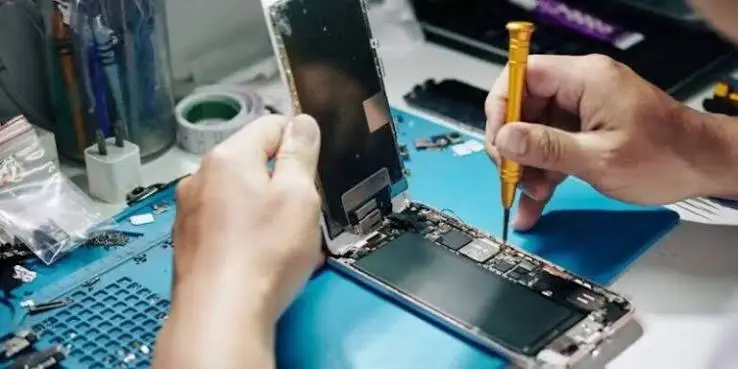
Smartphone troubleshooting is the process of identifying the cause of a phone problem and applying appropriate steps to restore normal operation.
A smartphone issue can come from several sources, including:
- Software bugs or outdated operating systems
- Problematic apps
- Low storage space
- Weak or unstable network connections
- Battery degradation
- Charging accessories
- Incorrect settings
- Physical or liquid damage
- Hardware failure
Good troubleshooting works by narrowing down the possible causes instead of randomly changing settings.
How to Troubleshoot a Smartphone
The fastest approach is to follow a simple troubleshooting sequence:Smartphone troubleshooting helps users solve common phone problems quickly and easily.
With smartphone troubleshooting, you can fix issues like slow performance, app crashes, and battery drain.
Basic smartphone troubleshooting can often save time and avoid unnecessary repair costs.
Learning smartphone troubleshooting makes it easier to handle common technical problems independently.
Effective smartphone troubleshooting includes checking settings, restarting the device, and updating software.
Regular smartphone troubleshooting can help keep your phone running smoothly and efficiently.
- Identify the exact problem.
- Restart the smartphone.
- Check the battery and charging connection.
- Check storage space.
- Install available system and app updates.
- Test the problem again.
- Try a more specific solution.
- Back up important data before major changes.
- Contact the manufacturer or a qualified repair professional if hardware damage is suspected.
A restart is often a useful first step because it closes running processes and reloads the operating system without deleting your personal data.
Smartphone Running Slowly
A slow smartphone may be caused by limited storage, demanding apps, background activity, outdated software, or aging hardware.
How to Fix a Slow Smartphone
Try these steps:
- Restart your phone.
- Check available storage.
- Remove apps you no longer use.
- Delete unnecessary downloads and large files.
- Update the operating system and apps.
- Close or restrict problematic apps if your device provides those controls.
- Check whether the problem occurs with one particular app or throughout the entire phone.
If the phone becomes slow only after opening a specific application, that app may be the source of the problem. Updating or reinstalling it can help.
Avoid Aggressive “Phone Cleaner” Apps
Be careful with third-party cleaning or optimization applications. Some may provide limited benefits while consuming additional resources or displaying excessive advertisements. Use the storage and device-management tools built into Android or iOS whenever possible.
Smartphone Battery Draining Quickly
Battery drain is one of the most common reasons people search for smartphone troubleshooting help.
Fast battery loss can result from high screen brightness, location services, background activity, weak cellular signals, demanding applications, or battery aging.
Steps to Reduce Battery Drain
- Check which apps use the most battery.
- Reduce unnecessary screen brightness.
- Use automatic brightness when appropriate.
- Turn off features you do not need.
- Install pending software updates.
- Limit unnecessary background activity.
- Use battery-saving mode when needed.
- Keep the phone away from excessive heat.
A useful troubleshooting technique is to compare battery behavior before and after changing one setting. This makes it easier to identify what is actually affecting battery life.
When Battery Problems Need Attention
If a battery becomes unusually hot, swells, leaks, or causes the phone’s body or screen to separate, stop using the device and seek professional assistance. Do not attempt to puncture, squeeze, or open a swollen lithium-ion battery.
Smartphone Not Charging
If your phone is not charging, do not immediately assume the battery has failed.
How to Troubleshoot Charging Problems
Start with these steps:
- Try a different compatible charging cable.
- Try another compatible power adapter.
- Test another electrical outlet.
- Check the charging port for visible debris.
- Restart the phone.
- Check whether the device displays any charging indication.
- If possible, test a known-good charger and cable.
Avoid inserting sharp metal objects into the charging port. If the port is damaged, loose, burned, or contaminated with liquid, professional inspection is safer.
If wireless charging works but wired charging does not, the issue may be related to the cable, adapter, charging port, or wired charging circuitry.
Smartphone Overheating
Smartphones can become warm during demanding tasks such as gaming, video recording, navigation, or charging. However, persistent or unusual overheating deserves attention.
What to Do If Your Phone Gets Too Hot
- Stop demanding applications temporarily.
- Remove the phone from direct sunlight.
- Disconnect it from charging if it becomes excessively hot.
- Allow it to cool naturally.
- Check for unusual background activity.
- Install available software updates.
- Avoid using damaged batteries or charging accessories.
Do not put a hot smartphone in a freezer or refrigerator. Rapid temperature changes can cause condensation and potentially damage electronic components.
Smartphone troubleshooting helps users solve common phone problems quickly and easily.
With smartphone troubleshooting, you can fix issues like slow performance, app crashes, and battery drain.
Basic smartphone troubleshooting can often save time and avoid unnecessary repair costs.
Learning smartphone troubleshooting makes it easier to handle common technical problems independently.
Effective smartphone troubleshooting includes checking settings, restarting the device, and updating software.
Regular smartphone troubleshooting can help keep your phone running smoothly and efficiently.
Wi-Fi Not Working on a Smartphone
When Wi-Fi does not work, determine whether the problem affects only your phone or every device connected to the same network.
If Only Your Phone Has a Wi-Fi Problem
Try:
- Turn Wi-Fi off and back on.
- Restart your phone.
- Move closer to the router.
- Forget the Wi-Fi network and reconnect.
- Check that the password is correct.
- Restart the router if you have access to it.
- Install available system updates.
If Multiple Devices Cannot Connect
The problem may involve the router, internet service, or network configuration rather than your smartphone.
Checking another device is therefore one of the simplest smartphone troubleshooting techniques. It helps separate a phone-specific problem from a network-wide issue.
Mobile Data Not Working
If cellular data suddenly stops working, check whether your phone shows cellular signal and whether mobile data is enabled.
Mobile Data Troubleshooting Steps
- Confirm mobile data is turned on.
- Check whether airplane mode is enabled.
- Restart the phone.
- Move to an area with better cellular coverage.
- Check your carrier account or data allowance.
- Verify the correct SIM or eSIM is active.
- Install carrier or system updates when available.
If calls and text messages also fail, the problem may be related to cellular service, the SIM/eSIM, or your carrier rather than the phone’s internet settings alone.
Smartphone Apps Keep Crashing
An application that repeatedly closes or freezes may have corrupted data, compatibility problems, insufficient resources, or a software bug.
How to Fix Crashing Apps
First, restart the phone and update the affected app.
On Android, you may also have options to clear an app’s cache or data through system settings. The exact menu names vary by device manufacturer and Android version.
On iPhone, updating the app or iOS can help. If the problem continues, deleting and reinstalling the application may resolve corrupted app data.
Before deleting an app, make sure important information is synchronized or backed up.
Smartphone Screen Not Responding
A frozen or unresponsive touchscreen can be caused by software problems, moisture, physical damage, or a malfunctioning display.
Try These Steps
- Remove gloves or anything interfering with touch input.
- Clean and dry the screen with an appropriate soft cloth.
- Remove a problematic screen protector if it is visibly damaged or interfering with touch.
- Restart the phone.
- Install available updates after the device becomes responsive.
If only one section of the screen consistently fails to respond, especially after a drop or liquid exposure, hardware damage becomes more likely.
Bluetooth Problems
Bluetooth issues can prevent headphones, speakers, vehicles, watches, and other accessories from connecting properly.Smartphone troubleshooting helps users solve common phone problems quickly and easily.
With smartphone troubleshooting, you can fix issues like slow performance, app crashes, and battery drain.
Basic smartphone troubleshooting can often save time and avoid unnecessary repair costs.
Learning smartphone troubleshooting makes it easier to handle common technical problems independently.
Effective smartphone troubleshooting includes checking settings, restarting the device, and updating software.
Regular smartphone troubleshooting can help keep your phone running smoothly and efficiently.
Bluetooth Troubleshooting
- Turn Bluetooth off and back on.
- Restart both devices.
- Keep the devices close together.
- Confirm the accessory has sufficient battery.
- Remove the old Bluetooth pairing and pair the devices again.
- Check for software updates.
- Make sure the accessory is not already connected to another device.
For persistent problems, resetting network settings may help, but remember that this can remove saved network and Bluetooth configurations.
Smartphone Storage Is Full
Low storage can interfere with downloads, updates, photos, videos, and application performance.
How to Free Smartphone Storage
Review your storage settings and identify the largest categories first.
You can usually free space by:
- Removing unused apps
- Deleting duplicate or unnecessary photos
- Removing downloaded videos
- Clearing unnecessary files
- Moving important media to approved cloud or external storage
- Reviewing large messaging attachments
Do not delete important files simply because they occupy space. Back up valuable photos, documents, contacts, and other personal data before removing them.
Smartphone Microphone or Speaker Not Working
Audio problems can be caused by blocked openings, software settings, connected Bluetooth devices, or hardware damage.
Troubleshooting Audio Problems
First, check the volume and make sure the phone is not connected to a Bluetooth headset or vehicle.
Then:
- Restart the phone.
- Test another application.
- Make a test call or voice recording.
- Check whether the microphone and speaker work independently.
- Inspect the openings for visible obstruction.
- Test the phone without unnecessary accessories.
If audio problems began after water exposure or a physical impact, professional inspection may be appropriate.
Smartphone Camera Not Working
A camera application that freezes, crashes, or displays a black screen may have a software or hardware problem.
Try restarting the phone, updating the camera application or operating system, closing other demanding apps, and checking available storage.
If another application can access the camera while the default camera application cannot, the issue may be software-related. If no application can access the camera after basic troubleshooting, hardware damage may need to be considered.
Phone Keeps Restarting or Shutting Down
Unexpected restarts can be caused by software errors, problematic applications, insufficient battery power, overheating, or hardware problems.
What to Check
- Install system updates.
- Remove recently installed or suspicious applications.
- Check available storage.
- Monitor whether the phone becomes unusually hot.
- Test the phone after charging it adequately.
- Back up important information.
If the phone repeatedly restarts before you can use it normally, manufacturer recovery or professional repair options may be necessary.
Android Troubleshooting vs. iPhone Troubleshooting
The general troubleshooting principles are similar, but menus and recovery options differ between Android phones and iPhones.
| Problem | Android | iPhone |
|---|---|---|
| Slow performance | Check storage, apps, updates | Check storage, apps, iOS updates |
| App crashes | Update, restart, clear cache where available | Update, restart, reinstall if needed |
| Wi-Fi issue | Forget network and reconnect | Forget network and reconnect |
| Battery drain | Review battery usage | Review battery usage |
| Storage problem | Storage settings | iPhone Storage settings |
| Serious software issue | Manufacturer recovery options | Apple recovery options |
Always follow instructions for your specific model because Android manufacturers can modify menus and available features.
When Should You Factory Reset a Smartphone?
A factory reset can resolve some persistent software problems, but it should not be the first troubleshooting step.
A factory reset removes personal data and returns the device to a reset state. Before performing one, back up important photos, contacts, documents, messages, and other information.
Consider a factory reset only after simpler solutions have failed and you understand what will be erased.
Before a Factory Reset
- Back up important data.
- Confirm you know your account credentials.
- Check that important files have synchronized.
- Record any information you may need to restore the phone.
- Follow the official instructions for your device.
A factory reset will not normally repair physical problems such as a broken screen, damaged charging port, or defective hardware component.
Common Smartphone Troubleshooting Mistakes
Some troubleshooting attempts can make a problem harder to diagnose.
1. Changing Multiple Settings at Once
If you change five settings simultaneously, you may not know which change solved or caused the problem. Change one thing at a time whenever practical.
2. Ignoring Backups
Before major troubleshooting steps, protect important data. A reset or repair process can create a risk of data loss.
3. Using Incompatible Accessories
Cheap or incompatible cables, chargers, adapters, and accessories can cause charging or connection problems.
4. Ignoring Physical Damage
Software troubleshooting cannot repair a cracked display, damaged charging port, swollen battery, or water-damaged internal components.
5. Delaying Security Updates
Keeping the operating system and applications updated can address known bugs and security issues. Use official update mechanisms rather than downloading questionable software.
How to Know If You Need Professional Repair
Professional help may be appropriate when basic troubleshooting does not solve the issue or when there is clear evidence of physical damage.
Seek qualified assistance if your smartphone has:Smartphone troubleshooting helps users solve common phone problems quickly and easily.
With smartphone troubleshooting, you can fix issues like slow performance, app crashes, and battery drain.
Basic smartphone troubleshooting can often save time and avoid unnecessary repair costs.
Learning smartphone troubleshooting makes it easier to handle common technical problems independently.
Effective smartphone troubleshooting includes checking settings, restarting the device, and updating software.
Regular smartphone troubleshooting can help keep your phone running smoothly and efficiently.
- A swollen battery
- Significant liquid exposure
- A broken display affecting operation
- A damaged charging port
- Persistent overheating
- Repeated shutdowns after basic troubleshooting
- No response after standard restart procedures
- Serious hardware symptoms
If the device contains important information, tell the technician that data preservation matters before authorizing a repair or reset.
Smartphone Troubleshooting Best Practices
For reliable troubleshooting, keep these habits in mind:
- Start with the simplest possible solution.
- Identify whether the problem is software, network, accessory, or hardware related.
- Test another device when troubleshooting Wi-Fi or Bluetooth.
- Use official system updates.
- Back up important information regularly.
- Avoid unsafe battery repairs.
- Do not use sharp objects inside charging ports.
- Document when the problem started and what changed beforehand.
- Check manufacturer support documentation for model-specific instructions.
The goal is not simply to make the phone work temporarily. Good troubleshooting also helps you understand the underlying cause and avoid repeating the same problem.
If you want to learn more about using Android devices effectively, read our Android Tips guide for practical tips on battery life, storage, security, notifications, and everyday smartphone use.
For Apple users, our iPhone Tips guide covers useful features, battery-saving settings, privacy, storage, photography, and shortcuts.
If you are comparing different devices before buying, check our Android Phone Comparison guide to compare performance, display, camera, battery, storage, and other important features.
For official information about Android features and security, visit Android’s official website.
For official information about iPhone features and software, visit Apple’s official iPhone page.
Frequently Asked Questions
What is the first step in smartphone troubleshooting?
The first step is to clearly identify the problem and restart the phone. A restart can resolve temporary software or process-related issues without deleting personal data. After restarting, test the affected feature again. If the problem remains, move to targeted checks such as battery, storage, network connection, application updates, or hardware condition.
How do I fix a smartphone that is running slowly?
Start by restarting the phone and checking available storage. Remove unused applications and unnecessary files, then install available operating system and app updates. If one particular application causes the slowdown, troubleshoot that application separately. Persistent performance problems may also be related to aging hardware or a failing component.
Why is my smartphone battery draining so fast?
Fast battery drain can have several causes, including high screen brightness, demanding applications, background activity, location services, weak cellular signals, heat, or battery aging. Check your phone’s battery-usage information to identify applications or features consuming significant power, then change one setting at a time to determine what improves battery life.
Should I factory reset my smartphone to fix problems?
A factory reset can resolve some persistent software problems, but it should generally be considered after simpler troubleshooting methods fail. It removes personal information from the device, so you should create a reliable backup first. A reset also cannot fix physical problems such as a damaged screen, charging port, or battery.
When should I take my smartphone to a repair professional?
Professional repair may be appropriate when troubleshooting does not resolve the problem or when the phone has physical damage, liquid exposure, a swollen battery, persistent overheating, a damaged charging port, or repeated unexpected shutdowns. Avoid opening or repairing a damaged lithium-ion battery yourself because improper handling can create serious safety risks.
Conclusion
Smartphone troubleshooting is usually most effective when you work from simple checks toward more advanced solutions. Restart the device, inspect charging accessories, check storage and battery usage, update software, test network connections, and isolate problematic applications before considering a factory reset or repair.
The most practical next step is to identify the exact symptom your smartphone is experiencing and follow the relevant troubleshooting section above. If basic solutions fail or the device shows signs of physical or battery damage, stop experimenting with advanced fixes and consult the phone manufacturer or a qualified repair professional.